Email routing is the process of determining where an email goes before it reaches the recipient’s inbox. In other words, it’s what helps ensure your automated emails like payment notifications, support tickets, and everything in between end up where they’re supposed to.
To break down exactly how email routing works and how to configure it, I sat down with Mailtrap’s deliverability experts and engineers who helped prepare this article.
Feel like skipping ahead? Use the jump links below:
- What is email routing?
- How does email routing work?
- Types of email routing
- Email routing rules and configuration
- How to route inbound email into an application
Disclaimer: The information in this guide is based on our years of experience running both outbound and inbound email infrastructure.
What is email routing?
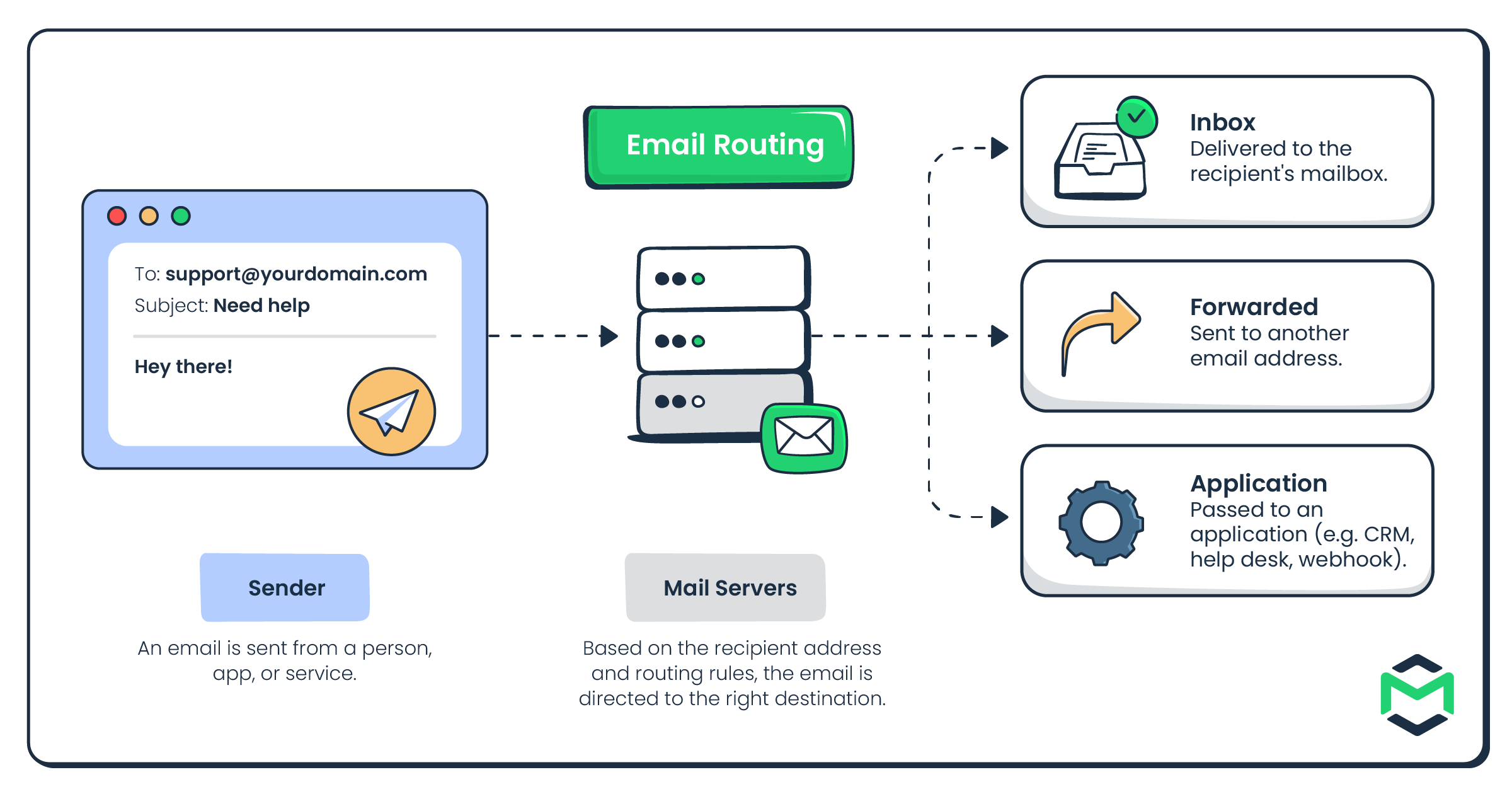
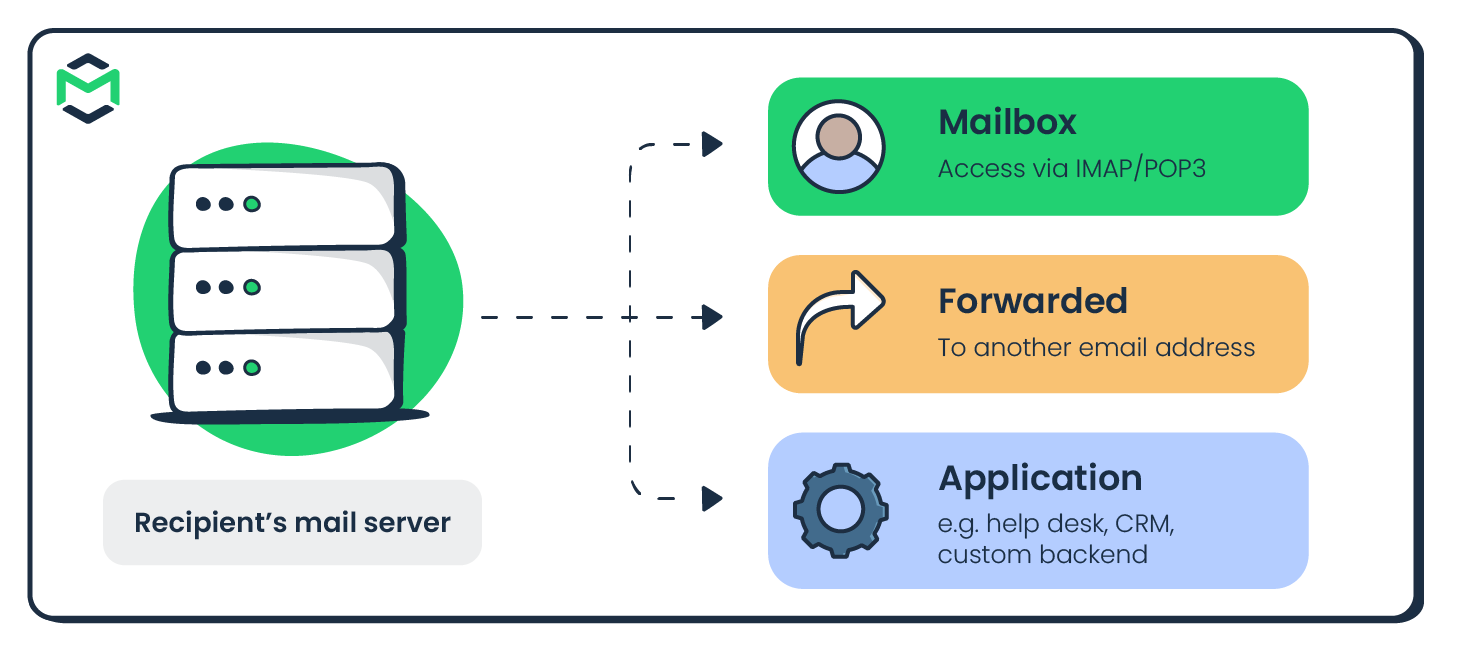
Email routing is the process of determining where a message goes before it reaches the recipient’s inbox. It can be delivered directly, forwarded to another address, or even routed to an application for further processing.
For example, imagine a customer sends an email to support@company.com. The mail server can then route it to:
- A shared support mailbox
- Another email address
- A help desk application that automatically creates a ticket
Think of email routing as a set of directions that tells each message where to go next. It’s no rocket science, but it can make the difference between emails reaching the right destination automatically and someone having to sort them manually.
What is email routing used for?
Depending on the setup, email routing can be used for several purposes, including:
- Support automation – Route refund requests to finance, technical questions to support, or complaints to a priority queue.
- Email forwarding and aliases – Direct messages sent to addresses such as
support@,billing@, orsales@to the right mailbox or team. - Application processing – Send inbound email to a help desk, CRM, or backend application to create tickets, trigger workflows, or process attachments.
- Load balancing and failover – Spread traffic across multiple servers and provide fallback routes if a primary server becomes unavailable.
- Security and filtering – Route messages through gateways for spam, phishing, malware, or attachment scanning.
- Catch-all routing – Capture messages sent to otherwise nonexistent addresses under your domain.
- Compliance archiving – Route copies of messages to an archive for retention, auditing, or compliance requirements.
In short, email routing removes much of the manual work involved in deciding where each message should go and how it should be handled.
How does email routing work?
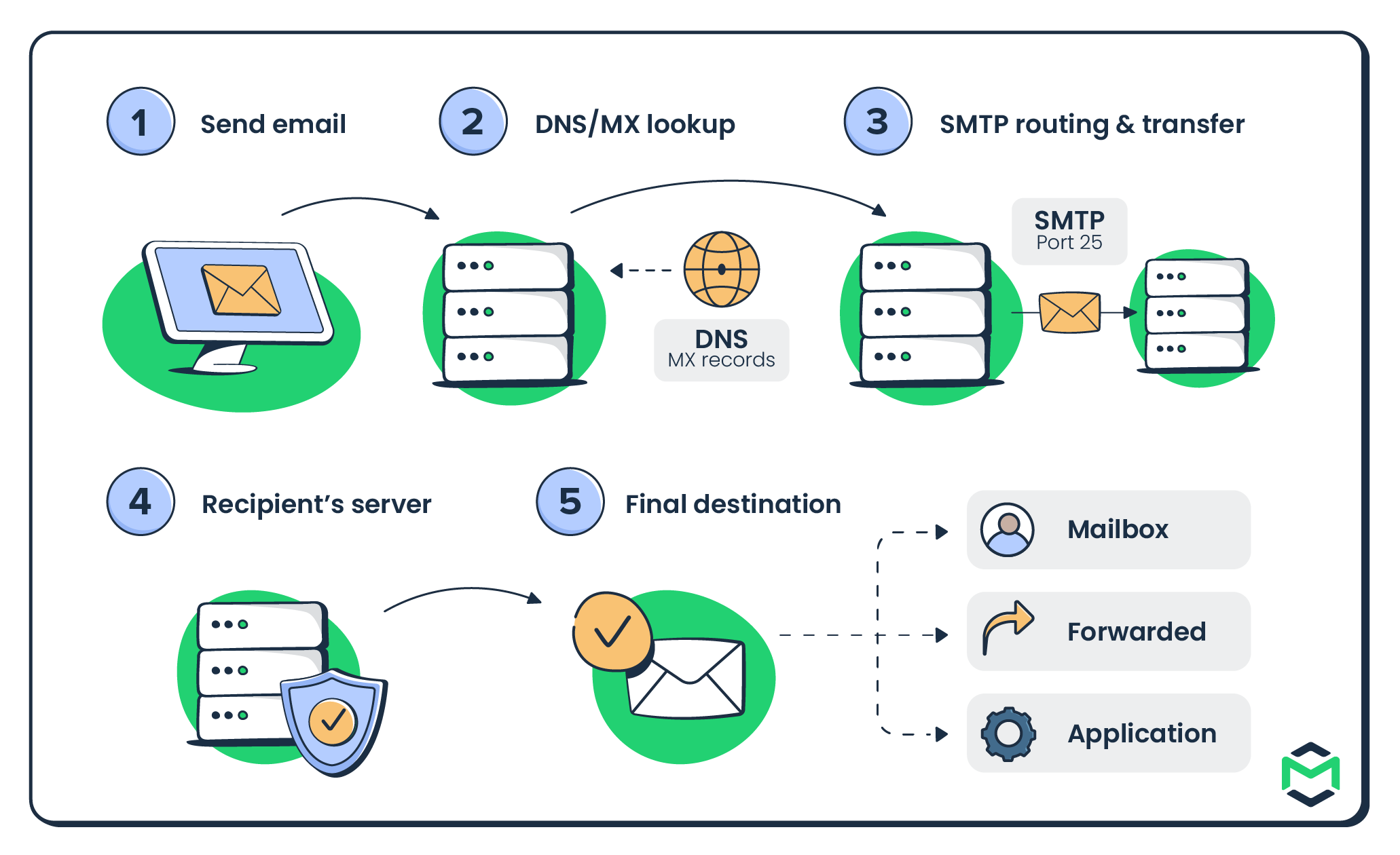
Now, the part where we get into the technical nitty-gritty of email routing. I’ll break down each of the 5 end-to-end steps the process consists of, and to start, here’s a diagram of how it all works:
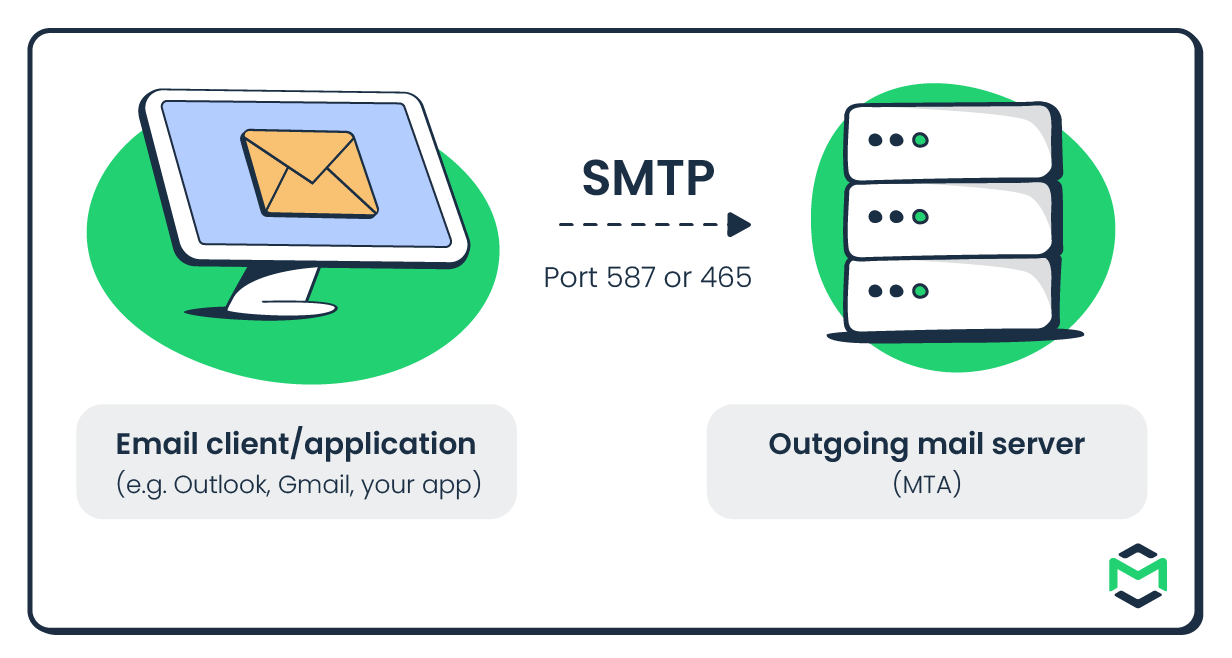
1. Send email
When you hit Send, your email client or application passes the message to an outgoing email server, also known as a Mail Transfer Agent (MTA). This usually happens over SMTP using port 587 or 465.
The MTA then takes over and starts working out where the message needs to go.
If you want to freshen up your knowledge on mail agents, check out our YouTube video:
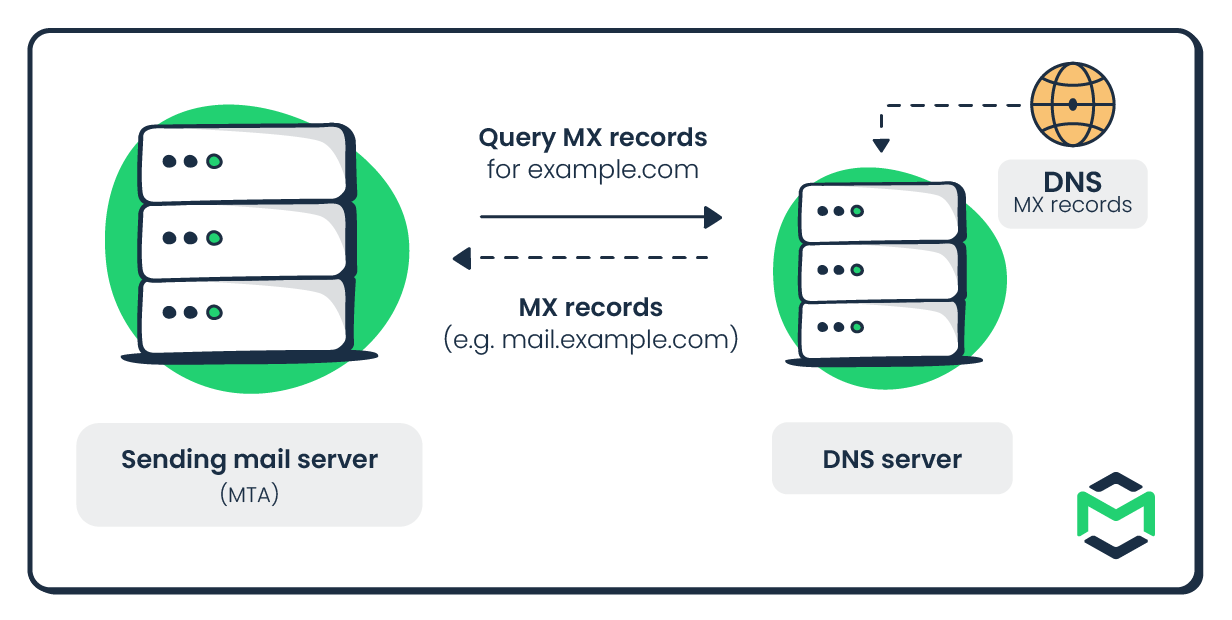
2. DNS/MX lookup
Next, the sending MTA checks DNS records for the recipient domain’s MX (Mail Exchange) records. These records tell it which mail servers are responsible for receiving email for that domain.
If there are multiple MX records, servers with lower priority numbers are tried first.
3. SMTP routing & transfer
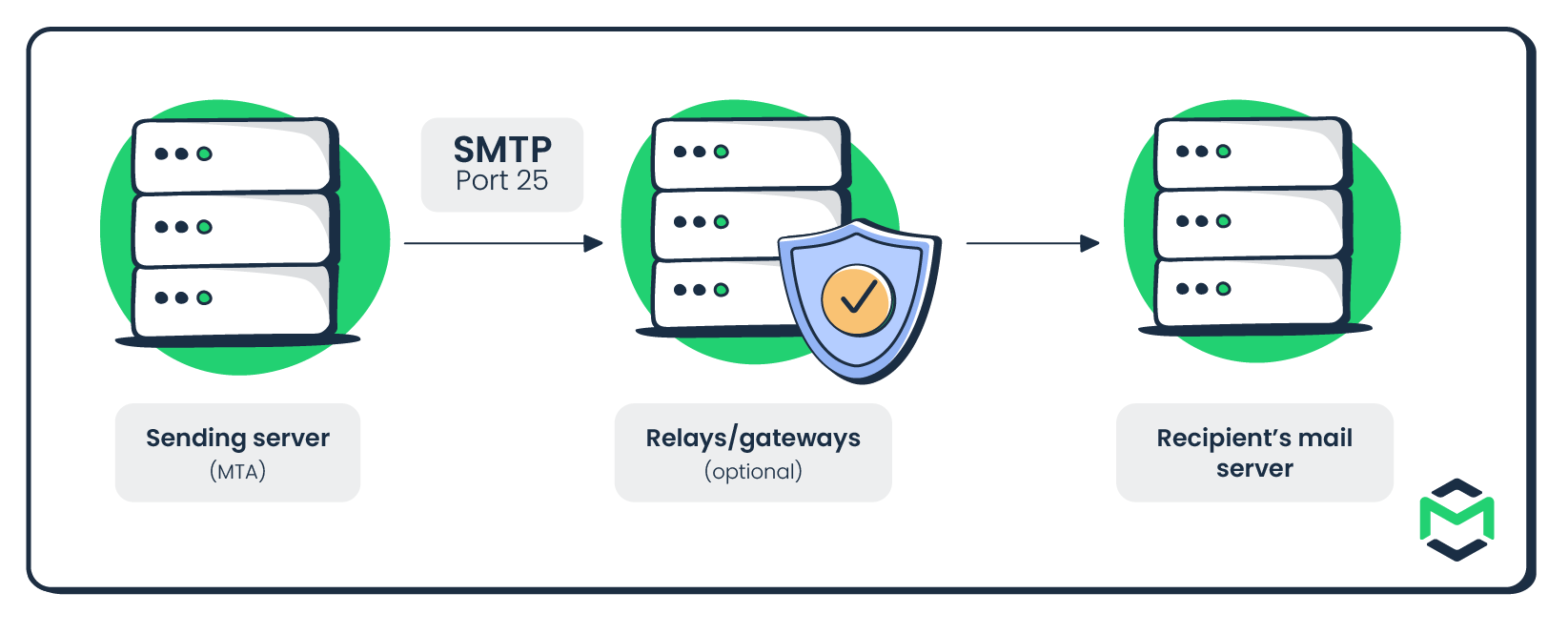
Once the destination server is known, the sending MTA establishes an SMTP connection, typically over port 25, and begins transferring the message.
At this stage, the SMTP envelope (the sender and recipient addresses) helps determine where the email should be sent. The message may also pass through intermediate relays, gateways, spam filters, or security systems along the way.
We also have a cool little video on SMTP servers if you feel like watching some quality content:
4. Recipient’s server
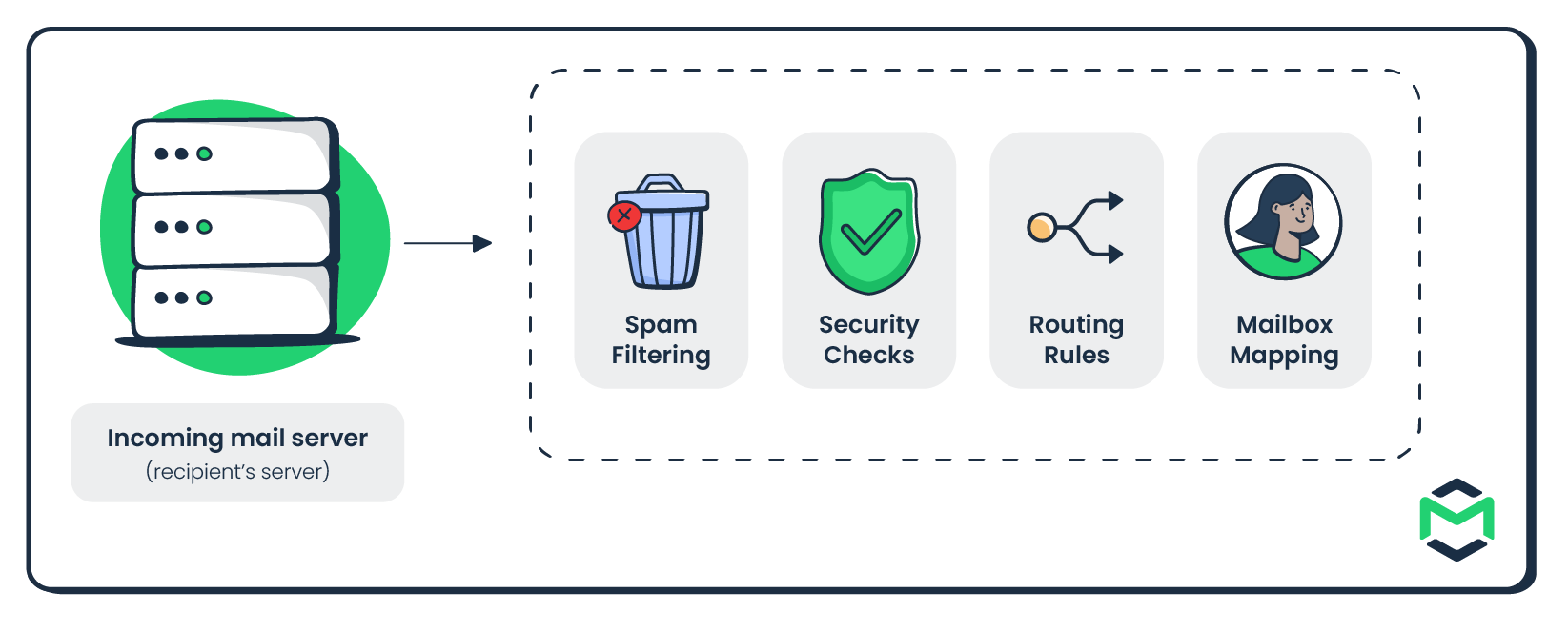
The receiving email server checks the recipient and applies its routing and security policies before accepting the message for further handling.
Depending on the setup, it may check the recipient address, apply security or spam filtering, map the message to a mailbox, or decide that it should be forwarded or passed somewhere else.
5. Final destination
Finally, the email reaches its configured destination. It may be:
- Delivered to the recipient’s mailbox
- Forwarded to another address
- Routed to an application such as a help desk, CRM, or custom backend
If it lands in a mailbox, the recipient can then access it through protocols such as IMAP or POP3.
Types of email routing
Email routing can be classified in a few different ways depending on what determines the route and how the message travels to its destination.
Keep in mind that these approaches can overlap. For instance, split delivery can use recipient-based rules to select the receiving mail system.
Sender-based routing
Best for: Organizations that need to route email differently based on the sender, sending account, department, or domain.
Sender-based routing uses information about the sender to determine how a message should be handled. For example, emails sent by the finance department could be routed through one email server, while messages from the support team use another.
This can be useful when different teams, domains, or applications require separate email infrastructure, policies, or delivery paths.
However, the routing logic depends on sender information being consistent. If accounts, domains, or organizational structures change, the corresponding rules may also need to be updated.
Recipient-based routing
Best for: Directing incoming messages to different mailboxes, teams, or applications based on the intended recipient.
Recipient-based routing determines where an incoming email should go after it reaches the receiving mail system. To achieve this, it uses the destination email address or domain.
For example, messages sent to billing@company.com can be routed to finance, emails to support@company.com to a help desk, and messages for another recipient to their individual mailbox.
Conditional / custom routing
Best for: Organizations that need different routes depending on the sender, recipient, domain, message properties, or business rules.
Conditional routing combines criteria such as sender, recipient, subject, headers, or message content to choose a delivery path. For example, you could:
- Send messages for a particular domain through a specific gateway
- Route support emails to a ticketing application
- Send messages containing sensitive information through additional security checks
- Use a backup server when the primary route is unavailable
Split delivery
Best for: Organizations using more than one email system for the same domain.
Split delivery divides email for one domain between multiple mail systems.
For example, some employees at company.com might have mailboxes in Google Workspace, while others are still hosted on an on-premises mail server. The routing system checks where each recipient belongs and sends the message to the appropriate environment.
This is commonly useful during migrations or when different groups need to remain on separate email platforms.
Email routing rules and configuration
Email routing rules define when a message should take a particular route and what should happen when it matches. They usually follow an if/then structure:
- Condition: sender, recipient, domain, subject, header, or another message property
- Action: deliver, redirect, forward, reject, archive, or send through another server
For example:
If recipient = support@company.com → route to the support system
Common routing configurations include:
- Catch-all routing – Captures messages sent to otherwise nonexistent addresses under a domain.
- Aliases – Provide additional addresses, such as
billing@andpayments@, that deliver to the same mailbox. - Address maps – Define explicit mappings between source addresses and destination addresses, such as
old-name@company.comtonew-name@company.com. - Dual delivery – Sends a copy of the same message to each of two different mail systems.
How to route inbound email into an application
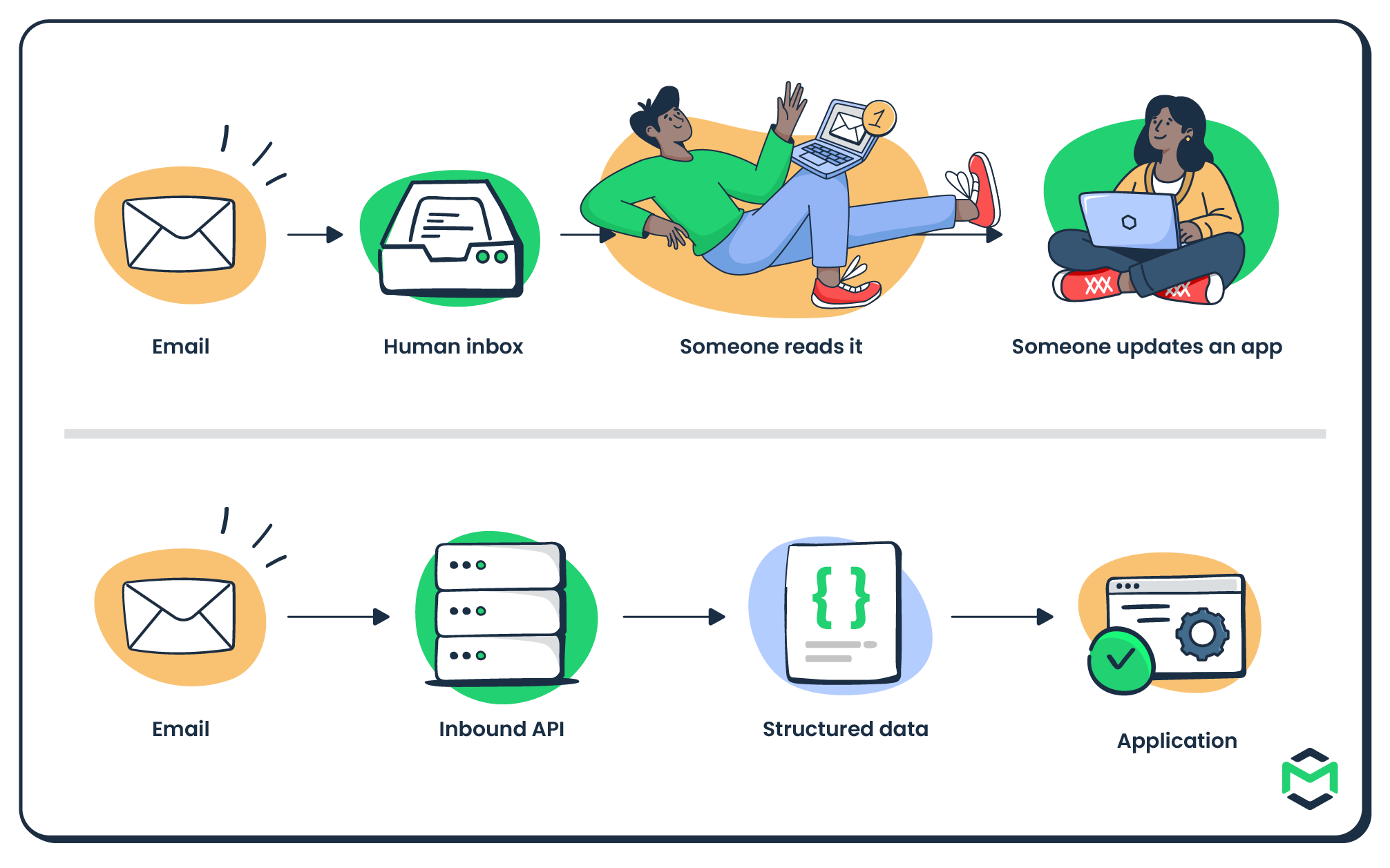
Email routing doesn’t always have to end with a human inbox. For applications that need to process incoming email automatically, the destination can be your backend instead.
The basic flow looks like this:
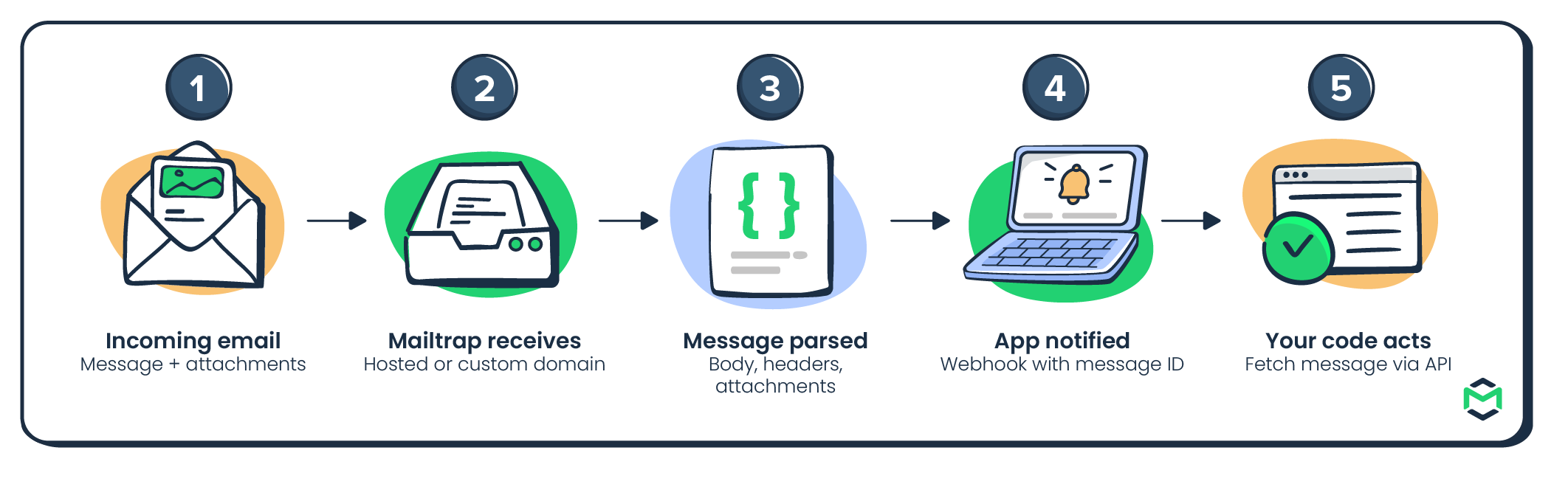
With Mailtrap Inbound Email, you can set this up without running your own receiving mail server or MIME parser. Mailtrap can create hosted inboxes immediately, parse incoming messages, and expose the result through the Messages API and webhooks.
- Create an inbound inbox
Start by creating a folder and an inbox through the Inbound Email API. Mailtrap gives the inbox its own hosted inbound-mailtrap.io address, so you can start receiving messages without configuring DNS first. Folders let you group related inboxes (e.g., by application, customer, workflow, etc.).
For this, you can use the following commands:
# 1. Create a folder
curl -X POST https://mailtrap.io/api/inbound/folders \
  -H "Authorization: Bearer YOUR_API_KEY" \
  -H "Content-Type: application/json" \
  -d '{"name":"Accounts Payable"}'

# → {"id":10,"name":"Accounts Payable"}

# 2. Create an inbox inside that folder
curl -X POST https://mailtrap.io/api/inbound/folders/{folder_id}/inboxes \
  -H "Authorization: Bearer YOUR_API_KEY" \
  -H "Content-Type: application/json" \
  -d '{"name":"Accounts Payable inbox"}'

# → {"id":1002,"name":"Accounts Payable inbox","address":"accounts-payable@inbound-mailtrap.io","domain_id":892}

# 3. Copy the hosted address returned in the response
echo "accounts-payable@inbound-mailtrap.io"
If you want to receive email on your own domain instead, you can connect a custom receiving domain and point its MX records to the receiving infrastructure.
Note: Make sure to replace YOUR_API_KEY with your actual Mailtrap API token. Also, replace {folder_id}, {inbox_id}, and {message_id} with the IDs returned by the corresponding API responses.
- Send an email to the inbound address
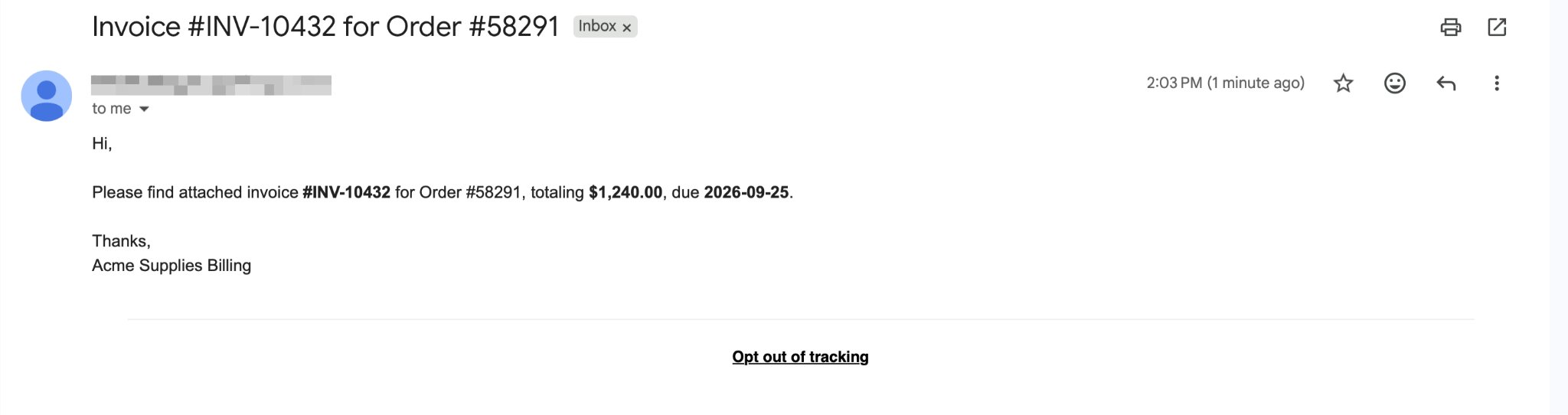
For the purposes of this article, I’ve sent a typical invoice email to my inbound address. In Gmail, it looked something like this:
- Receive the parsed message through the Messages API
Then, I listed the messages in the inbox and fetched the full contents of the invoice email:
curl -X GET 'https://mailtrap.io/api/inbound/inboxes/{inbox_id}/messages' \
  -H "Authorization: Bearer YOUR_API_KEY"

# Then, grab the message ID from the list and fetch the full message:

curl -X GET 'https://mailtrap.io/api/inbound/inboxes/{inbox_id}/messages/{message_id}' \
  -H "Authorization: Bearer YOUR_API_KEY"
And here is what the invoice email looks like in the JSON output:
{
  "id": "1874622104589312768",
  "from": "Billing <billing@acmesupplies.com>",
  "to": ["accounts-payable@inbound-mailtrap.io"],
  "subject": "Invoice #INV-10432",
  "text_body": "Please find the invoice attached.",
  "attachments": [
    {
      "filename": "invoice_10432.pdf",
      "content_type": "application/pdf"
    }
  ]
}- Pass the message to your application
For real-time workflows, configure a webhook so your application is notified when a new email arrives. Your backend can then use the message ID to fetch the full parsed message from the Messages API and process it. Alternatively, your application can poll the API for new messages.
What happens next is entirely up to your application. For example, it could:
- Create a support ticket
- Save an attachment to storage
- Add information to a CRM
- Process an invoice
- Trigger an automation
- Pass the message to an AI agent
Email routing FAQ
What is the difference between email routing and email forwarding?
The main difference between email routing and forwarding is that email routing determines where a message should go based on rules such as the sender, recipient, domain, or message properties. On the other hand, email forwarding simply sends a message received at one address to another. In fact, forwarding is often just one action a routing rule can trigger.
How do you set up email routing rules to send mail to a new address?
In most email systems, you create a rule with two parts:
- Condition – For example, recipient =
support@company.com - Action – For example, forward to
helpdesk@company.com
The exact setup depends on your provider. Some platforms let you configure rules in a dashboard, while others use server configuration files, address maps, or APIs.
What DNS records does email routing rely on, and how do MX records fit in?
Email routing mainly relies on MX (Mail Exchange) records to identify the mail servers responsible for receiving email for a domain.
When someone sends a message to user@company.com, the sending server checks the MX records for company.com and attempts email delivery to the listed mail exchangers according to their priority.
How do you route inbound email into an application instead of a human inbox?
You can use an inbound email service to receive the message, parse it, and expose the contents to your application through an API or webhook.
For example, with Mailtrap Inbound Email, you can create a dedicated inbound address, receive messages there, access the parsed content through the Messages API, and notify your application through webhooks. Your application can then create a ticket, process an attachment, update a CRM, trigger an automation, or perform another action.
Is email routing free, and what can you do on a free custom-domain setup?
Email routing can be free or paid, depending on the service and setup you choose. For example, Mailtrap’s free plan includes up to 4,000 emails per month, shared between sending and receiving.
Does email routing affect deliverability, SPF/DKIM/DMARC, and spam filtering?
Yes. Email routing can affect deliverability because every additional relay, gateway, or forwarding step changes how the message is handled.
For example, forwarding can cause SPF checks to fail because the forwarding server is not listed in the original sender’s SPF record. If an intermediary modifies the message, it can also break the DKIM signature, which may then affect DMARC alignment.
Wrapping up
And with that, we have answered the age old question: ‘what is email routing?’.
As you’ve noticed by now, it’s basically choosing where your email goes. How you set it up can determine whether your messages land in inboxes, whether they trigger spam filters, and how much time your team spends handling what should be automatic.
If you want to route inbound email into an application without building your own mail server or parser, go with Mailtrap’s Inbound Email API, which converts incoming messages into predictable JSON your backend can process immediately.
Further reading: