
How it works
Add Mailtrap’s MCP server to Devin and use the Cascade AI assistant to send emails, manage templates, monitor deliverability and assist with domain setup – without leaving your editor.
Beyond the MCP connection, Cascade can also scaffold Mailtrap SDK integrations into your project code.

Configuration
Step 1: Create an account and get the API key
Navigate to Settings → API Tokens and click on Add Token.
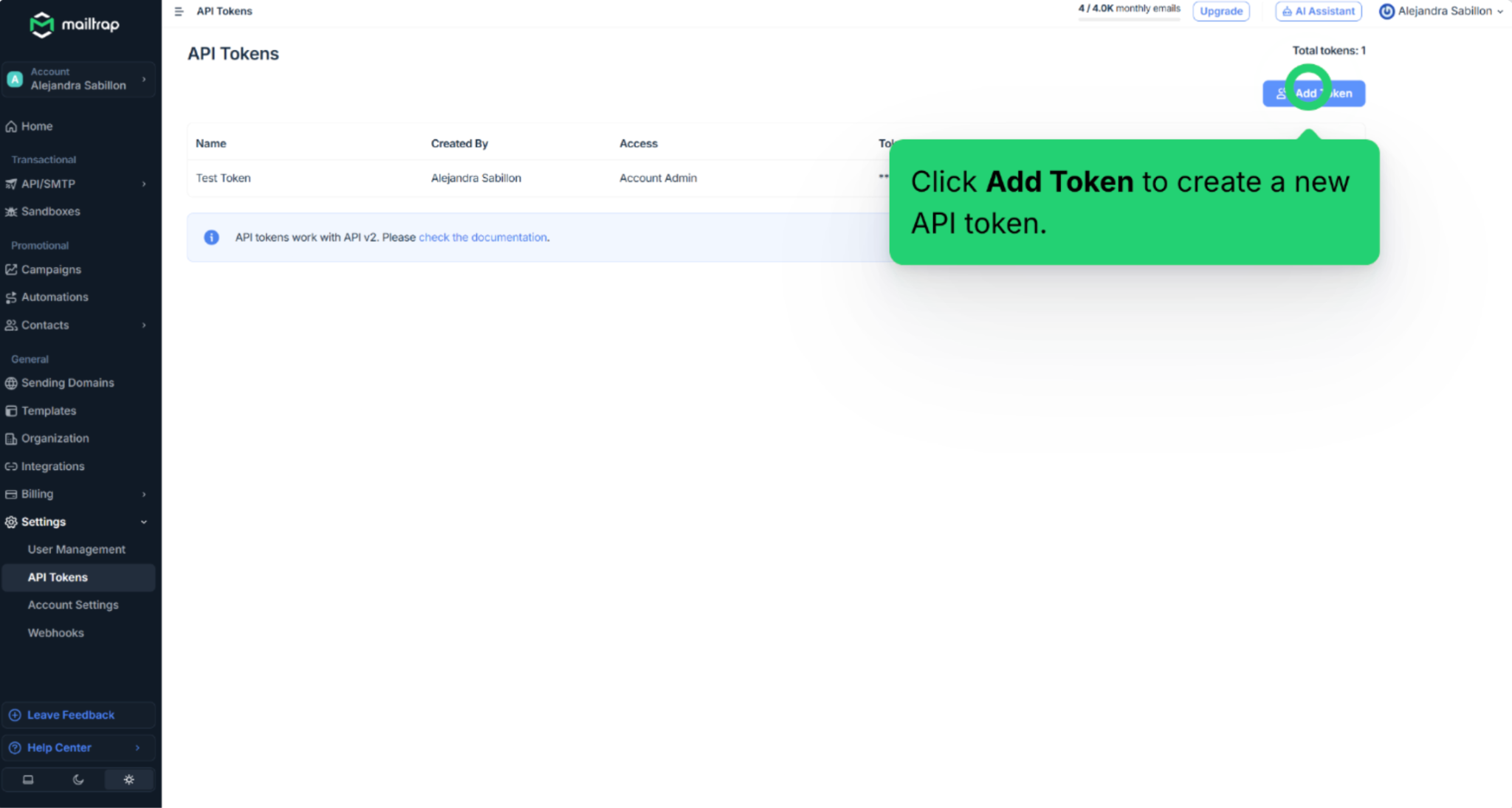
Step 2: Add Mailtrap MCP to Devin AI
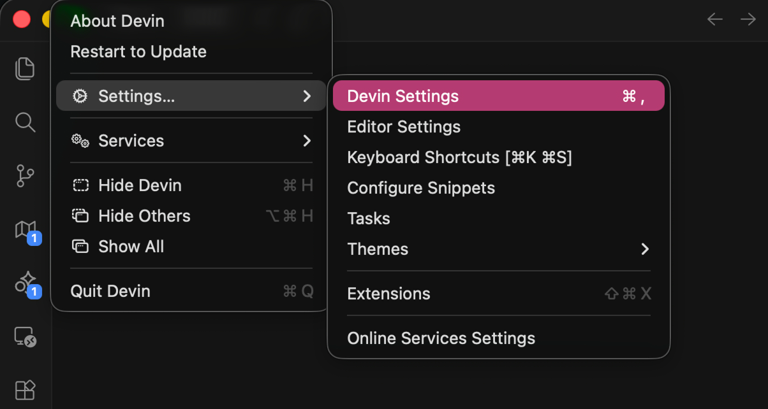
Open Devin AI, navigate to Settings → Devin Settings
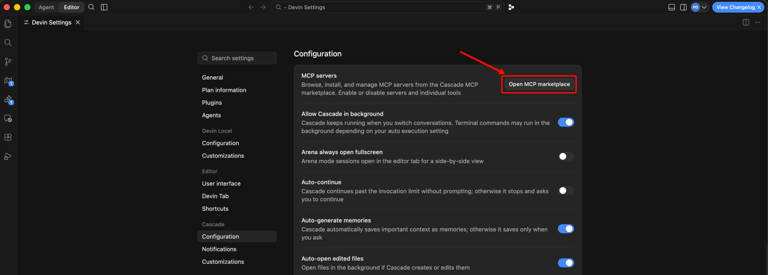
Under the Configuration tab, you will see the Open MCP marketplace button. Click on it, and you’ll be taken to the MCP Marketplace page.
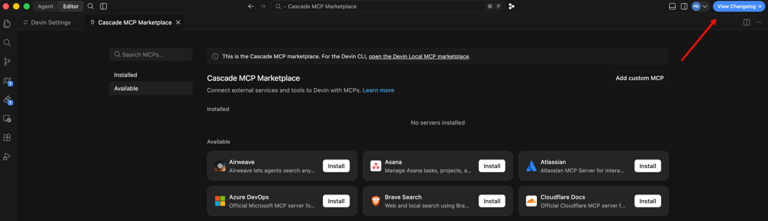
On the MCP Marketplace page, click on the Add custom MCP button, which will open the mcp_config.json file.
Then, in the mcp_config.json file, copy/paste the following code snippet:
{
  "mcpServers": {
    "mailtrap": {
      "command": "npx",
      "args": ["-y", "mcp-mailtrap"],
      "env": {
        "MAILTRAP_API_TOKEN": "your_mailtrap_api_token",
        "DEFAULT_FROM_EMAIL": "your_sender@example.com",
        "MAILTRAP_ACCOUNT_ID": "your_account_id",
        "MAILTRAP_TEST_INBOX_ID": "your_test_inbox_id"
      }
    }
  }
}
Step 3: Insert your Mailtrap credentials
Replace the placeholders in mcp_config.json with your:
MAILTRAP_API_TOKEN– Required for all operations.DEFAULT_FROM_EMAIL– Must match the domain from your Sending Domains.MAILTRAP_ACCOUNT_ID– Required for template management.MAILTRAP_TEST_INBOX_ID– Required for Sandbox features.
Make sure to refresh the page or restart Devin AI for the changes to take effect.
Use cases
- Send a test email mid-development and verify it lands in your sandbox inbox, without switching to a browser.
- Trigger transactional emails from your project and confirm delivery in Mailtrap Email Logs.
- Iterate email template copies through Cascade prompts – create, send to sandbox, review, update.
- Fetch recent sandbox messages to inspect and debug emails during coding sessions.
- Scaffold email infrastructure in a new project and debug delivery issues without switching windows.
For more information, please consult the official knowledge base article.