Skip to Navigation


Welcome to the world of Salesforce email automation – a place where technology and marketing strategies converge to create impactful communication.
Through this article, we take a detailed look at the potential of using Mailtrap SMTP, Flows, and custom triggers. We also explore other options that can aid in better segmentation and improved email automation.
Whether you’re new to this domain or a seasoned professional, this guide is designed to navigate you toward a more streamlined and productive email marketing process.
But first, let’s answer a critical question.
Can Salesforce send automated emails?
Salesforce is capable of sending automated emails and this feature is part of Salesforce’s comprehensive suite of automation tools
You can easily set up automated email campaigns that trigger based on specific events or customer actions. For instance, you might set up an automated email to be sent when a potential customer downloads a particular piece of content, completes a form, or takes a specific action on your website.
In addition, Salesforce’s email automation can also be employed for more routine tasks such as sending out reminder emails for upcoming events or appointments. Or sending out transactional emails after a customer makes a purchase or requests information. These types of sales automation will save your sales reps time and free them up for other important tasks.
One of the strongest assets of Salesforce automation is its level of customizability. You can personalize your automated emails based on various customer data points in Salesforce. It may include everything from the customer’s name to their previous interactions with your business.
With this level of personalization, your automated emails can feel far more personal and relevant, enhancing engagement and fostering a stronger relationship with your customers.
Automation coupled with Salesforce analytics tools allows you can easily track the success of your email campaigns. In turn, it’ll be much easier for you to identify what’s working and what might need to be adjusted.
In essence, Salesforce’s email automation capabilities enable you to:
- streamline your communication process,
- ensure timely responses
- maintain a personalized connection with your clients
And you get all that without adding to your team’s workload.
Lastly, automation is among the most efficient approaches to improve your email marketing strategy and, ultimately, drive business growth. So much so, that HubSpot reports 71% of marketers stress that automation is one of the most effective strategies for email campaigns.
Important Note
Salesforce ended support for Process Builder and Workflow Rules on 31 December 2025. Existing automations still run, and you can activate, deactivate and edit them, but they receive no support and no bug fixes. For anything new, Salesforce’s guidance is Flow Builder.
That is what this tutorial uses. We’ll build the automation with Flows, and pair it with Mailtrap as an SMTP solution to securely send emails and ensure high deliverability.
If you need more information on Salesforce’s transition to Flows, please check their official documentation.
Salesforce email automation options
There are several options to automate emails with Salesforce-specific tools. We’ll list some of the most capable and versatile, typically available under Salesforce Marketing Cloud. If you need custom automation tailored to your business needs, finding a Salesforce developer for hire can help you optimize these tools for maximum efficiency.
But, keep in mind that access to these tools might not be available across all Salesforce Editions. Also, opting for one of them may add extra cost to your Salesforce plan.
Be that as it may, here’s a quick breakdown of the tools that are worth your attention.
- Journey Builder
The Journey Builder enables you to design personalized customer journeys based on their actions or inactions. These customized paths can trigger automated emails at crucial touchpoints, offering personalized content that resonates with each customer’s unique journey with your brand.
- Email Studio
Similar to the Journey Builder, yet more straightforward, the Email Studio is an equally powerful option for email automation. You can create, send, and track professional emails to your audience with ease.
It can be particularly useful for non-tech teams because of its drag-and-drop interface. You can create beautiful emails fast with no coding required. You can also segment your audience to ensure each group receives the most relevant content.
- Einstein Engagement Scoring
Salesforce isn’t just about sending emails; it’s about making them effective. Einstein Engagement Scoring uses AI to analyze how your audience interacts with your emails. It then gives you insights to optimize the timing, content, and even subject lines of your automated emails.
- Marketing Cloud Account Engagement (formerly Pardot)
Marketing Cloud Account Engagement, which Salesforce renamed from Pardot, is a comprehensive marketing automation solution designed for B2B companies. Its automation options extend to email, enabling you to nurture leads with personalized, automated email campaigns.
You can target your leads based on their engagement, activities, and more, ensuring they receive the right message at the right time.
Indeed, this is one of the most well-rounded solutions for email automation. But it doesn’t come cheap, so it’s best to carefully consider your automation requirements before opting for it.
- Salesforce Engage
This option empowers sales reps with personalized, automated emails. With Engage, reps can communicate with leads and opportunities directly from Salesforce or Gmail, and track their interactions to identify the most engaged prospects.
Now, in this article, we’ll describe how to use Salesforce Flows for email automation. And we’ll combine it with Mailtrap SMTP to ensure high deliverability and infrastructure control.
But before that, let’s briefly discuss some Salesforce email limitations you should know about.
Salesforce email limit
Salesforce caps outbound email per org, not per edition, and the cap is lower than most people expect once automation starts firing. Here is what applies.
- Single email: 5,000 external recipients per org, per day. A day runs on Greenwich Mean Time (GMT), and it is one allocation shared by every user in the org.
- Mass email and list email: 5,000 external addresses per org, per day, also on GMT.
- Duplicates count. The same address ten times counts ten times against the limit.
- Internal recipients do not count. Email to users inside your own org, including portal users, is unlimited through the UI.
- Per user, 250 external recipients per hour from the email composer.
The part that matters for automation: in orgs created in Spring ’19 or later, that daily org limit is also enforced on email alerts, simple email actions, Send Email actions in flows, and the REST API. The Flow you are about to build draws on the same 5,000 as everything else. In orgs created before Spring ’19, it is enforced only on email sent through Apex and the Salesforce APIs, excluding REST.
If you are following this tutorial in a Developer Edition or trial org, the numbers are far smaller: 50 recipients per user per day, a maximum of 15 recipients on a single email, and only 10 external recipients per org per day for mass and list email. A scheduled Flow can exhaust that in one run, so test against a handful of records rather than a full list.
These figures come from Salesforce’s own documentation: Email Allocations per Edition and Mass Email Limitations. Re-check them before you plan around them, because Salesforce has changed them before.
How to set up email automation in Salesforce?
As mentioned, this section covers an exemplary tutorial on how to set up email automation using Salesforce Flows, Mailtrap SMTP, and custom triggers.
Now, there are certain prerequisites, so here’s what to note.
- We assume that you’re a Mailtrap Email API/SMTP user with a verified domain. If not, sign up here, and check our knowledge base to see how to set up a domain.
- We assume that you set up a Salesforce email relay with Mailtrap Email API/SMTP. If not, the process is pretty straightforward, please go to our Salesforce tutorial.
- Mailtrap Email API/SMTP handles both streams. Transactional email and bulk campaigns go out on separate streams, each with its own reputation, so an automation that fires constantly does not sit on the same reputation as a monthly newsletter.
Without much further ado, let’s see how to set up a new email automation.
Flow setup
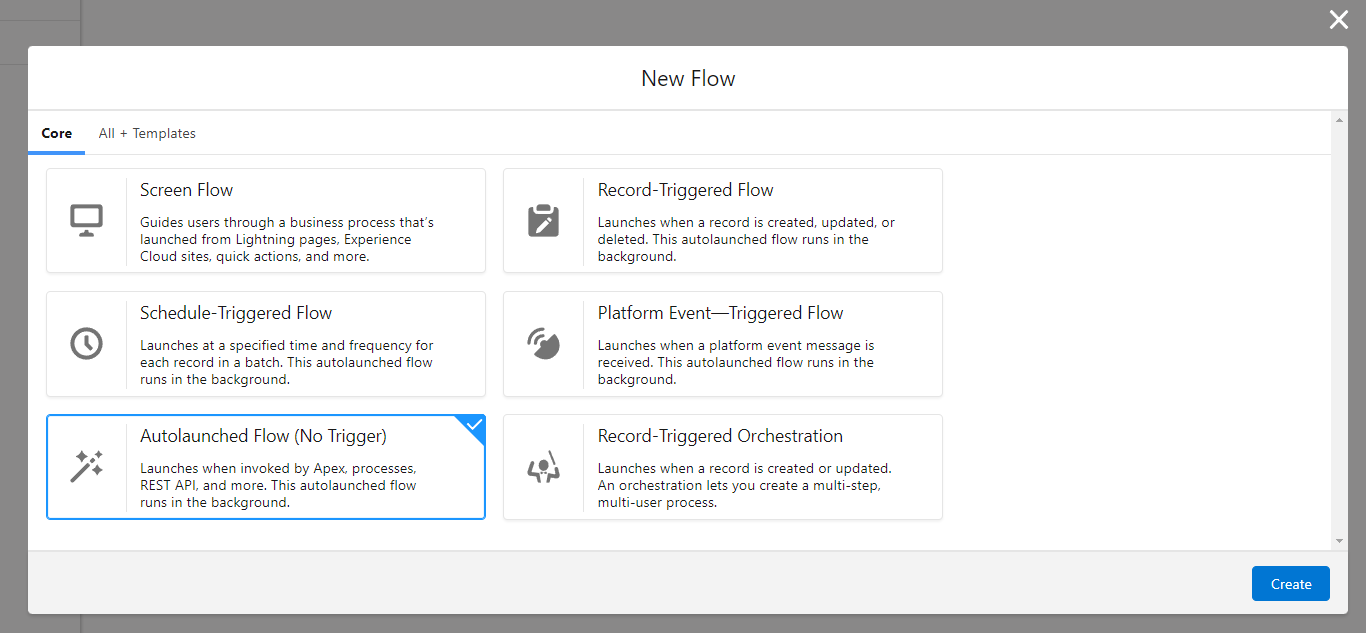
- With Salesforce, navigate to Flows, then hit the “New Flow” button.
- Name the Flow, and choose the Flow type. For the purposes of this tutorial, we’ll select “Autolaunched Flow (No Trigger)” type, then set a custom trigger afterward.
- Add elements such as loops, assignments, and decisions to run logical operators and, basically configure the Flow.
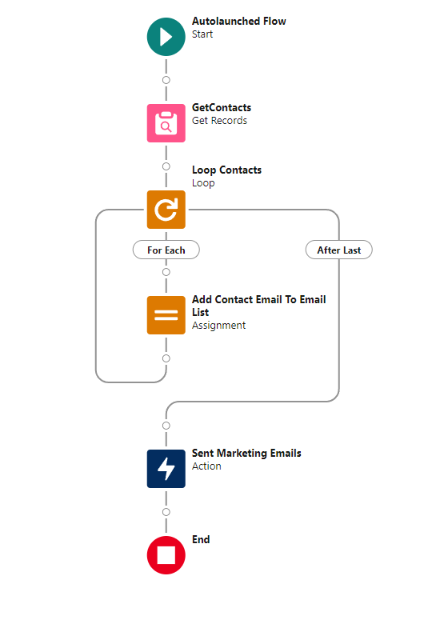
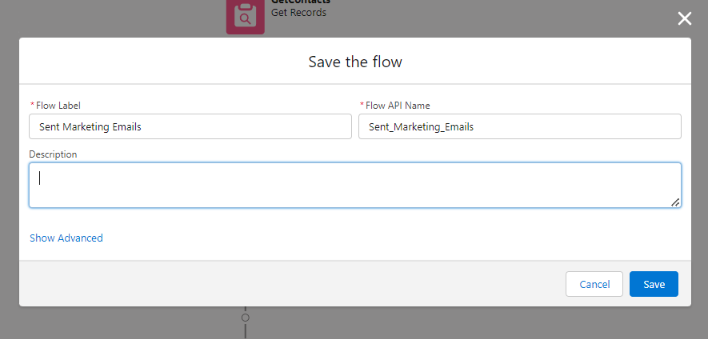
- Hit the Save button, label your Flow, then hit Save again.
Email actions
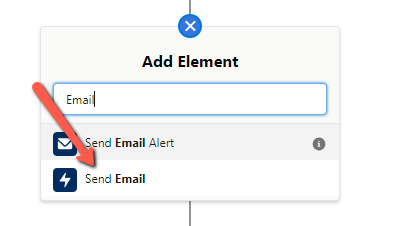
- Add Send Email action element to your flow.
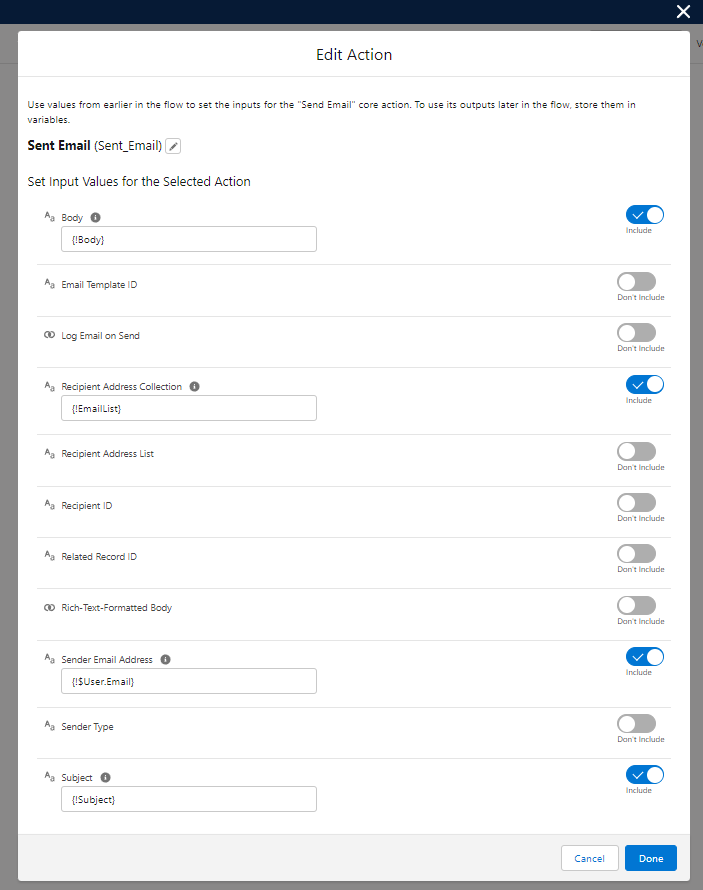
- Customize the element by selecting the email template, recipients, the subject line, and any other elements you might need.
- (Optional) test your email template with Mailtrap Email Sandbox to determine:
- Mailbox providers support for your template
- The templates’ Spam Score
- Mobile devices compatibility with previews
- If you need to debug the template prior to sending
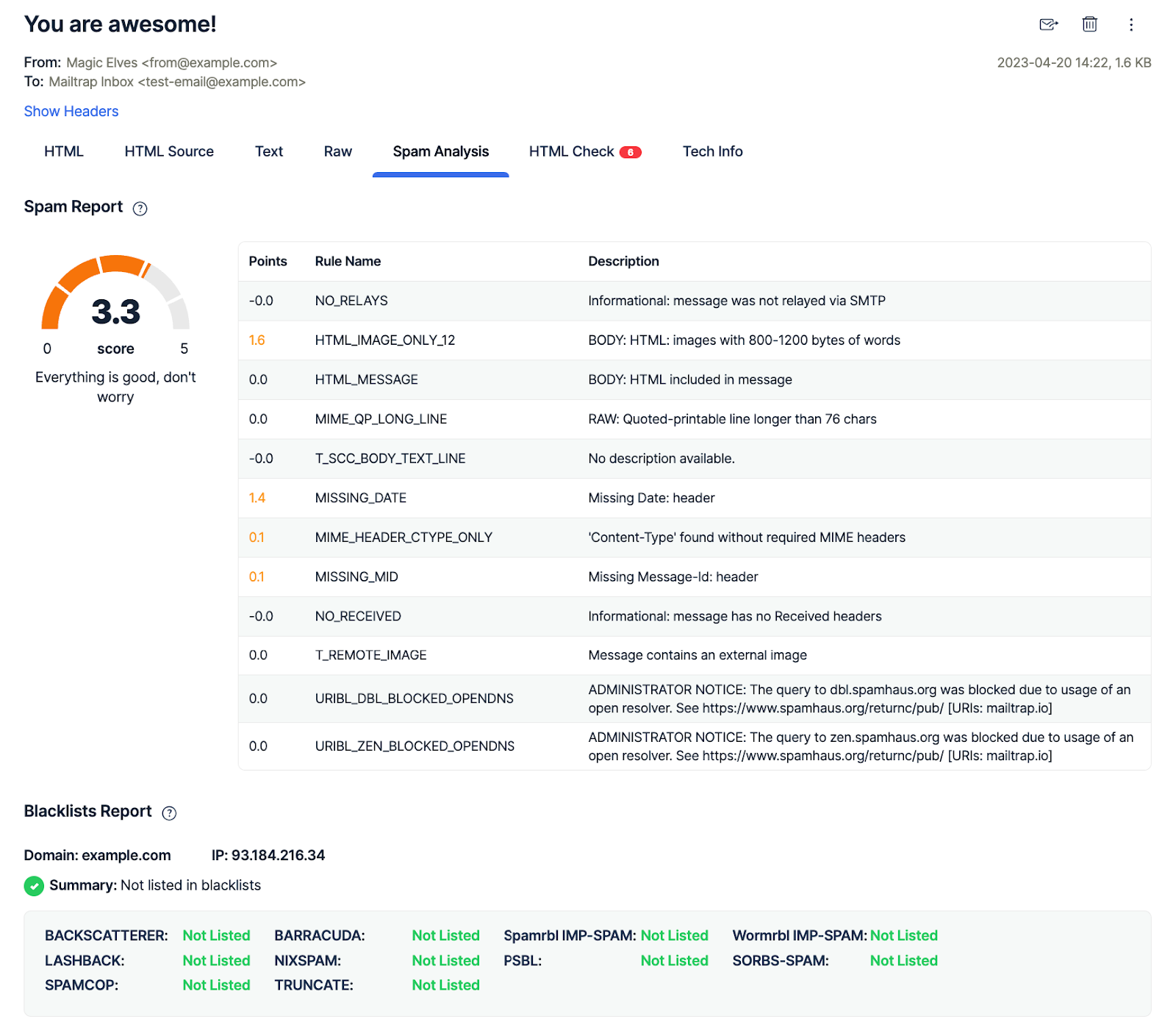
Bonus Tip: There is now a managed package for this. Mailtrap Email Sandbox for Salesforce installs from the AppExchange and routes outbound email from the org into a Mailtrap sandbox, so you can check what a Flow actually sends without a Contact receiving it. More on that in the next section, and the full walkthrough is here.
Email personalization and flow testing
- Use merge fields to personalize the emails, and consider using dynamic content for your emails (the one that changes based on specific criteria within a preselected client cohort).
- Go to the Flow Builder menu, and click the Debug button. That helps you test the Flow configuration, and note that this test is different from Mailtrap’s deliverability test.

- Verify email recipients and content with test data, which allows you to inspect different scenarios. Hit the Run button after clicking the checkbox you need.
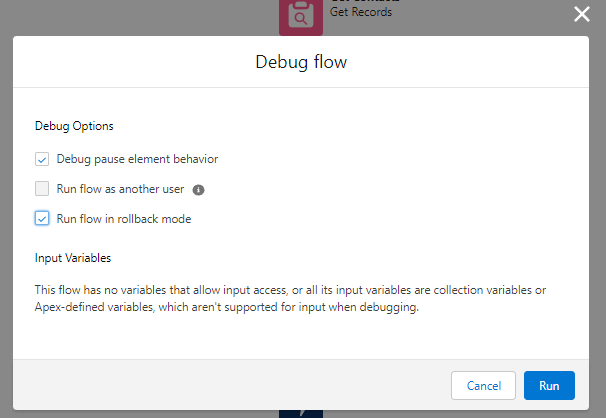
- Assuming you like the results, proceed to activate the flow.

Testing the email, not just the flow
Step 2 above makes an important distinction in passing, and it is worth spelling out. The Debug button tests the Flow. It tells you the logic ran, the criteria matched, and the action fired. It tells you nothing about the message that action produced.
That matters more in automation than anywhere else, because nobody is watching. A single email that renders badly is one complaint. A scheduled Flow that renders badly keeps sending until somebody notices.
Mailtrap Email Sandbox for Salesforce is a managed package that lets you see the message. Turn Testing Mode on and outbound email from the org, including email sent by a Flow action or an email alert, is routed to a Mailtrap sandbox instead of the recipient. Run the Flow with the Debug button as above, then open the captured message and check the rendered HTML, the headers, the merge fields as they resolved, and the spam score.
Two things to plan for. Testing Mode is org wide, so while it is on, every outbound email from that org goes to the Mailtrap sandbox and not only the Flow you are testing. And turning it off does not release what was captured while it was on, so anything that was meant to be real has to be sent again.
If you already send through Mailtrap Email API/SMTP, your relay configuration stays as it is. Testing Mode is a toggle: while it is on, email is captured instead of delivered, and when you turn it off, sending goes back through your relay as before. The install is the part to do carefully, so put the package into a Salesforce sandbox org first rather than straight into production, and confirm your sending relay is still intact before you repeat it in the org that sends to customers.
Setting it up is a one-time admin job, and Mailtrap’s Email Sandbox for Salesforce setup guide walks it screen by screen: install the package from the AppExchange listing, assign its permission set, create the Named Credential the package needs, then paste in a Mailtrap API token and pick the sandbox to route into. The Named Credential is the long step, and it helps to know why it is there — it is how your org authorises the package to change its own email settings, not part of the Mailtrap connection. The API token is the only piece that talks to Mailtrap.
It covers Sales Cloud, Service Cloud and platform email, which is what Flow actions and email alerts send through. It is free to use with the Mailtrap Free plan, which covers 50 test emails a month, one sandbox, and one email every 10 seconds, and does not support multiple recipients on a single email. Connecting Salesforce to a paid Mailtrap plan requires the paid add-on.
Custom trigger
- Go back to “New Flow”, and select Schedule-Triggered Flow. It can be a specific date, time, event, user behavior, etc.
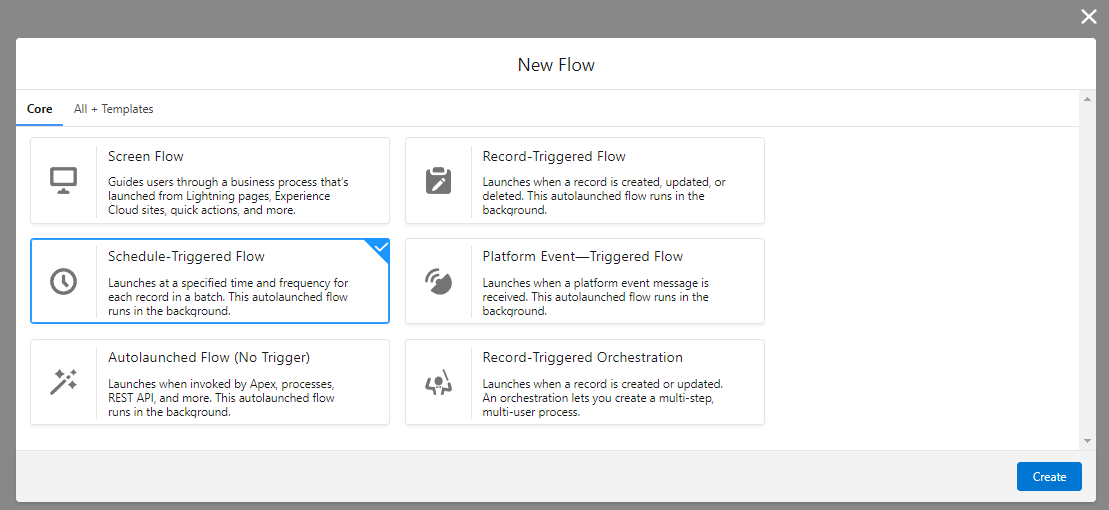
- For the purposes of this tutorial, we scheduled daily triggered emails at a set time. But of course, you can tweak the automated process to your preferences.
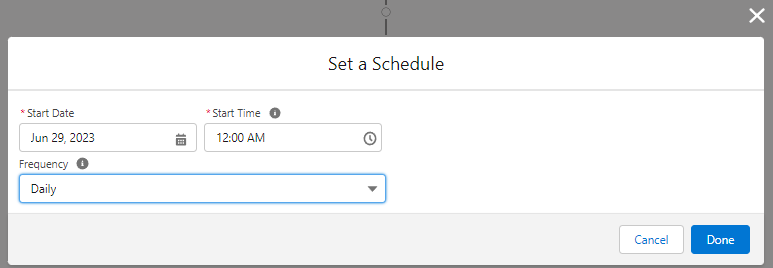
That’s it, hit Done, and you’re good to go.
Is there an alternative?
Yes, of course, there is; for such a big CRM platform there is always an alternative.
But let’s consider what kind of alternatives we’re talking about. Some businesses may benefit from exploring alternatives to Salesforce to find a better fit for their specific needs.
If you need an alternative to the automation consisting of Salesforce Flows + Mailtrap, we covered most of those under Salesforce email automation options.
On the other hand, if you’re in the market for something outside Salesforce’s ecosystem, you may want to consider:
- Marketo – A heavyweight in the marketing automation field, Marketo, now part of Adobe, offers a robust email automation platform. Its features include trigger-based emails, personalized messaging, A/B testing, and detailed analytics. Note that there’s also a freemium sales analytics integration for Salesforce.
- HubSpot – An all-in-one platform combining CRM, sales, service, and marketing tools – including email automation. HubSpot allows for personalized email marketing with plenty of templates, A/B testing, analytics, and integration with other HubSpot tools.
But here, we’d also like to discuss some other tools that relate to email automation and may help with the following.
- Improved lead segmentation
- Improved lead generation
- More detailed analytics
- Etc.
So, check the rundown of the top three tools you may consider adding to your arsenal and ultimately improve the performance of your email marketing campaigns.
- Veloxy
Veloxy offers a host of functionalities that streamline and automate your usage of the Salesforce CRM platform, regardless of how long you’ve been using it.
The primary allure of Veloxy is its ability to integrate Salesforce with your preferred inbox (either Gmail or Outlook) or smartphone (iPhone or Android). This allows for automatic lead capture and record updates.
Also, Veloxy enables you to effortlessly track your customers’ email engagement, aiding in prioritizing leads more effectively.
Ranging from contact and account intelligence to collating social media data and discovering leads through geolocation, Veloxy has the capacity to improve the following:
- Automated analysis and prioritization of leads and contacts based on buyer intent.
- Optimization of field sales routes for an increased number of stop-ins and meetings.
- Auto-capturing, creating, updating, and tracking records straight from your inbox.
Combined with email automation and drip campaigns, Veloxy gives you the upper hand to do better lead capture, segmentation, and finally lead engagement.
- ZoomInfo
ZoomInfo is best known for its data enrichment capabilities.The tool has built a reputation for its superior contact and account intelligence.
It automatically keeps your records accurate and updated, ensuring you have the most recent data at your fingertips, even during periods of inactivity.
We find ZoomInfo’s ability to personalize data enrichment workflows quite useful. Whether you want to prioritize based on lead score or territory or exclude their data automation from specific accounts, ZoomInfo gives you the flexibility. It’s also worth reviewing ZoomInfo’s pricing before deciding whether it fits your sales stack.
Additionally, the tool is proactive, alerting you when a new sales intelligence dataset becomes available where you currently lack a lead, contact, or account field. This might encompass mobile phone numbers, LinkedIn URLs, or even recent news articles.
With that, you have the upper hand to tweak email marketing automation on the fly and engage with potential customers at the right moment.
Make sure to also explore ZoomInfo alternatives with Salesforce integration capabilities. But to recap, notable ZoomInfo features include:
- Auto lead data capture (phone numbers, email addresses, and social profiles).
- Data enrichment integration with existing lead scoring rules.
- Personalizing data enrichment workflows by territory, account, or other criteria.
- Apptoto
This one has a particular use case, but it’s an alternative that can in fact send emails, text messages, or even voice messages. If you need to set up demos, discovery calls, or any kind of meeting with your prospects, Apptoto can help.
It’s an automated appointment reminder and online scheduling tool that puts your Salesforce calendar on steroids. As said, it dispatches reminders via text, email, and voice messages.
We particularly like the fact that Apptoto’s services extend beyond you and your sales team. The tool is designed for clients and anyone else that appears on your calendar. Each client can get a personalized email, reducing the chances of no-shows.
Notable features include:
- The integration with your calendar and address book.
- The ability for clients to reschedule online meetings on their own.
- The provision of proactive, templated campaigns to boost client engagement.
- Integrations with Zoom and other conferencing tools.
If you’re no stranger to AI and are on the lookout for a Salesforce email automation alternative, we also have a video dedicated to the topic on our YouTube channel:
An Automatic Conclusion
In the dynamic business world, Salesforce email automation can be your trusted partner, helping you reach your audience effectively and efficiently.
Whether you decide to harness the power of Mailtrap SMTP, Flows, and Custom Triggers, or choose from the wealth of other tools for better segmentation and more, the key lies in selecting the options that best serve your unique needs.
The journey toward successful email automation is a path of continuous learning and innovation. Stay open, keep experimenting, and happy automating!