


Just about every business aims to have smooth communication with its customers. Connecting email applications with Salesforce – a prominent Customer Relationship Management (CRM) platform, is one of the most direct ways to get there.
Salesforce email integration facilitates the automation of data entry tasks, enhancing customer data management and streamlining workflows. In this guide, we cover connecting Mailtrap, so the email your org sends actually arrives and can be checked before it goes, and then integrating Microsoft Outlook and Gmail so your team’s own conversations get logged against the record.
The Benefits of Salesforce Email Integration
Exploring the varied use cases of Salesforce email integration, businesses can unlock numerous benefits.
- Streamlining of Workflows
Integrating Salesforce with your preferred email application eliminates the tedious toggle between your email client and Salesforce CRM. This functionality allows sales reps to log emails directly into Salesforce records, significantly reducing time spent on manual work and thus enhancing efficiency and productivity.
- Real-Time Customer Data Management
Real-time notifications on customer data updates, keeping your team informed of the latest interactions within your Salesforce records. Real-time updates on Salesforce contacts enable your sales reps to make timely and, more importantly, accurate follow-ups.
- Automation of Data Entry
Salesforce email integration enhances efficiency and accuracy by automating manual data entry tasks, like pulling key information from emails, automatically applying email templates to replies to common questions, and promptly updating Salesforce records, minimizing errors and saving time.
- Tracking Email Performance
Salesforce email integration offers the benefit of enabling performance tracking for emails. By gathering key metrics such as open rates, click-through rates, and response times, it equips businesses with actionable insights to refine their communication strategy. These statistics serve to pinpoint which content types and sales strategies are striking a chord with the audience, thus facilitating a continuous optimization of the approach.
Salesforce Mailtrap Integration
There are two different things people mean by Salesforce email integration, and it is worth separating them before any setup. One is connecting a person’s mailbox to Salesforce, so a sales rep’s Outlook or Gmail conversations get logged against the right record. The other is connecting Salesforce to email infrastructure, so the mail the org itself sends — notifications, alerts, triggered messages, campaigns — goes out through something built to deliver it, and can be checked before it does.
We cover both, and we are starting with the second one, because it is the one that decides whether your email arrives at all. The mailbox integrations follow.
Sending: Mailtrap Email API/SMTP
Salesforce will send your email, but it is a CRM, not email infrastructure. Its daily caps are modest, its logs are thin, and its sending reputation is shared. If your business depends on those messages landing, you connect an email API/SMTP service through a Salesforce email relay and let it do the delivering while Salesforce stays the system of record.
Mailtrap Email API/SMTP carries two sending streams, one for transactional email and one for bulk, so a password reset and a marketing campaign do not share a reputation. The integration brings deliverability alerts, email logs, per-category and per-mailbox-provider stats, webhooks, suppression lists and a dedicated IP where you need one. For the full setup, see our guide on how to set up a Salesforce email relay.
Testing: Mailtrap Email Sandbox for Salesforce
Deliverability is only half the problem. The other half is what is actually in the message, and Salesforce will not show you that before it goes: the template editor shows you the template, not the message that leaves the org with its merge fields resolved.
Mailtrap Email Sandbox for Salesforce is a managed package. You install it from the AppExchange listing, so it behaves like the Outlook and Gmail integrations below rather than like a piece of SMTP configuration. Turn Testing Mode on and outbound email from Salesforce is routed to a Mailtrap sandbox instead of your Contacts and Leads. Open a captured message and you get the rendered HTML across clients, the headers, the merge fields as they resolved, and the spam score. Nothing reaches a recipient and nothing touches your sending reputation, because nothing leaves Mailtrap Email Sandbox.
Two things to plan for. Testing Mode is org wide, so while it is on, every outbound email from that org goes to the Mailtrap sandbox. And turning it off does not release what was captured while it was on, so anything meant to be real has to be sent again.
If you already send through Mailtrap Email API/SMTP — the integration above — your relay configuration stays as it is. Just install the package into a Salesforce sandbox org first rather than straight into production.
It covers Sales Cloud, Service Cloud, Experience Cloud and platform email, and connecting it is a one-time admin job — Mailtrap’s Email Sandbox for Salesforce setup guide walks it screen by screen, and our guide to testing emails in Salesforce has the full walkthrough. It is free on the Mailtrap Free plan, which covers 50 test emails a month, one sandbox, and one email every 10 seconds, and does not support multiple recipients on a single email; connecting Salesforce to a paid Mailtrap plan requires the paid add-on. Paid Email Sandbox starts at $17 a month, or $14 a month billed annually ($168 a year).
Integration of Salesforce with Outlook
That covers the mail your org sends. The other kind of integration connects your team’s own mailboxes, so their conversations are logged against the record. Creating a streamlined synchronization between Salesforce and Outlook is crucial for automating your sales activities. With Salesforce for Outlook, you enable Salesforce data to be updated directly from Outlook and vice versa.
- On your “Setup” page, search for “Outlook Integration and Sync” in “Quick Find” and enable access permission.

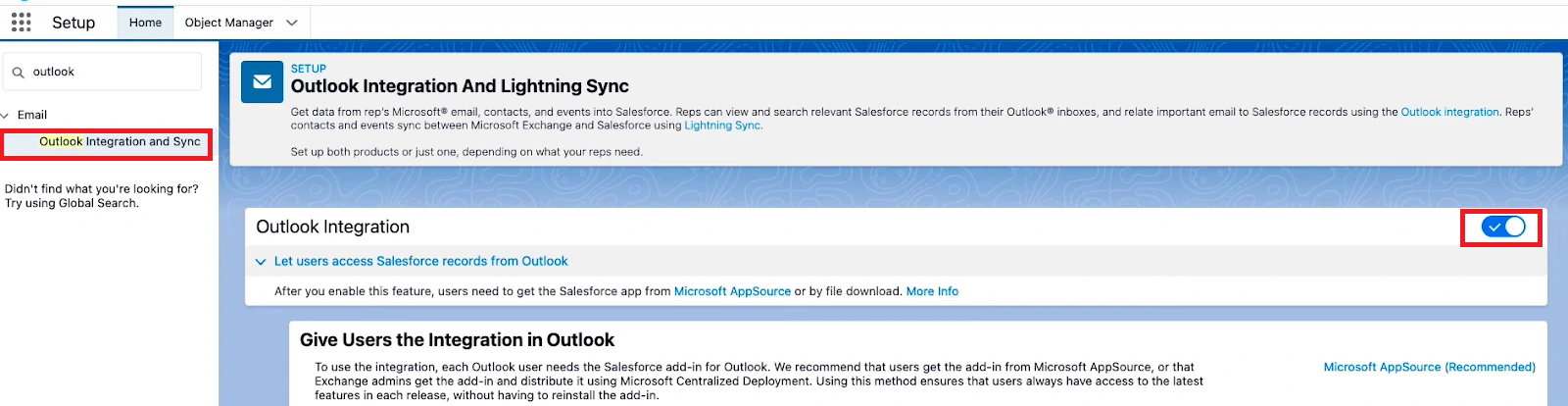
- Register your corporate domain in the Microsoft Outlook Web App Domain area.

- Download the Salesforce add-on from Microsoft AppSource.

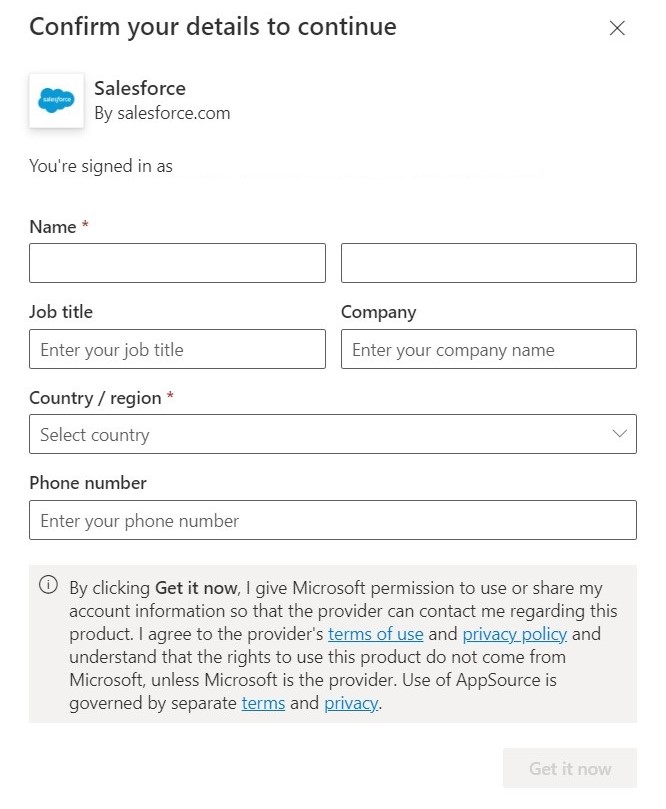
- Log in to your Microsoft 365 account and fill out the pop-up form with your information.

- Select “Salesforce” under the three dots from a new email window and authorize the connection with your Salesforce account.

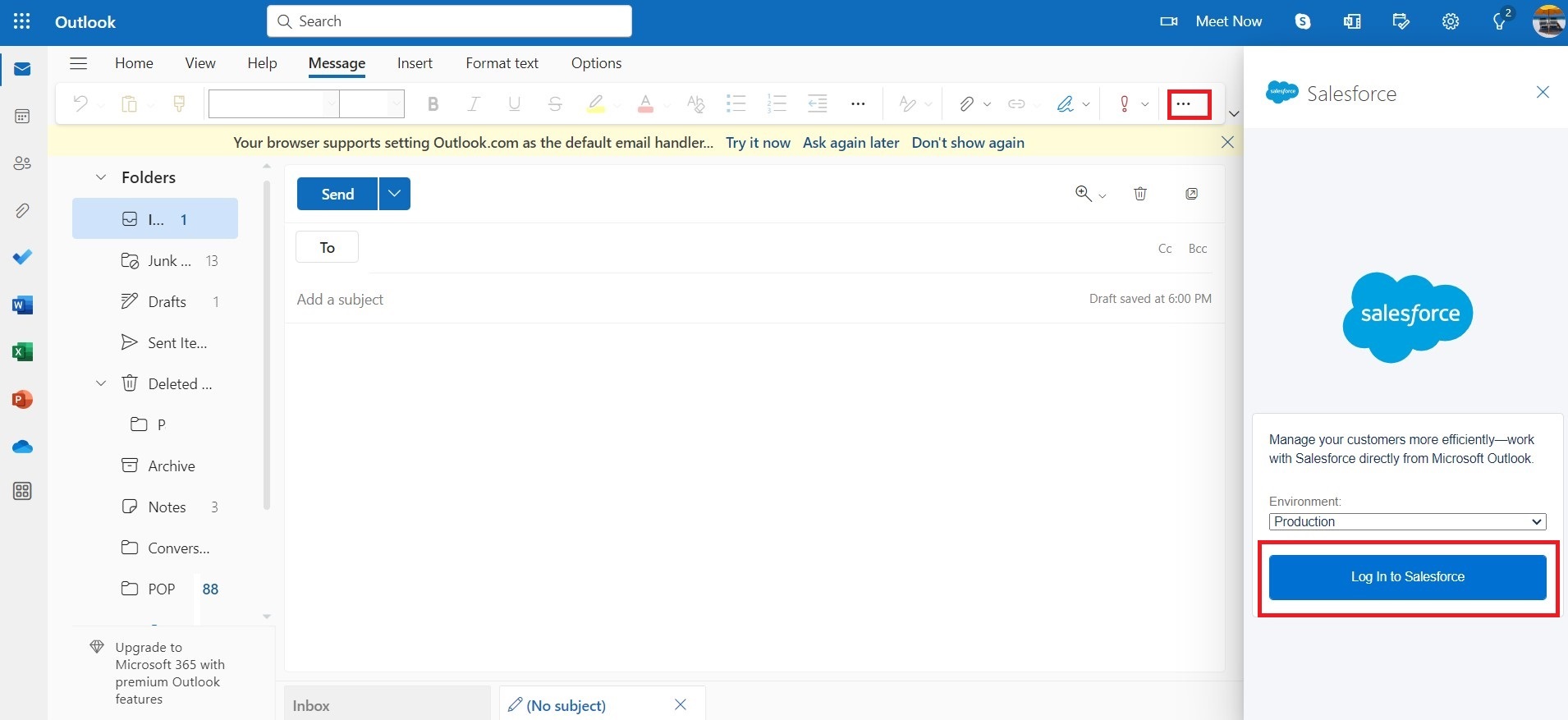
- Ensure the “Enhanced Email with Outlook” is activated on the “Outlook Integration and Sync” page. This will allow the system to log emails as email messages and Salesforce tasks.
Note: The step-by-step integration process can vary slightly based on the Salesforce edition and version you use, such as Salesforce Classic, Salesforce Lightning Experience, etc.
Upon finalizing the integration between Salesforce and Outlook, an optional but beneficial next step is setting up Einstein Activity Capture (EAC). EAC is a tool that provides real-time synchronization of activities across both platforms, enhancing the scope of integration. An authentication method is selected within Salesforce settings to implement EAC, granting Salesforce access to Microsoft Exchange Office 365. The integration concludes by designating the relevant Users and Profiles and adjusting activity-sharing settings.
Furthermore, it’s strongly suggested to explore more tools on the Salesforce AppExchange enterprise cloud marketplace for additional features and extended capabilities.
Limitations of Salesforce Outlook Integration
Although Salesforce Outlook email integration can vastly enhance your CRM processes, it’s important to know the limitations.
Setup Process: The setup process can be a little complex when dealing with more than one user. Salesforce add-in must be installed in each sales rep’s Microsoft Outlook. This can be achieved either by downloading the add-in from Microsoft AppSource or by Exchange admins distributing it using Microsoft Centralized Deployment. If security protocols prevent access to Microsoft AppSource, an installation file from the Outlook Integration must be used.
Restricted Synchronization Options: The integration does not update manually added calendar events following subsequent activity. Also, it does not support task sync, thereby preventing Outlook tasks from being linked to relevant Salesforce records. Additionally, syncing of custom fields is not available (Not the case with (EAC).
Reporting issues: Data captured by EAC is not directly reportable via Salesforce reports and has limited customization options for data capturing.
Risk of Data Loss: Deactivation of EAC will result in all captured activities being erased from the Salesforce activity timeline.
Syncing Delays: Following setup, EAC may take up to 24 hours to add emails and events to the related Salesforce records.
Lastly, Salesforce plans to retire Salesforce for Outlook by December 2027 due to its dependence on the now-unsupported Internet Explorer 11. Users are advised to transition to Outlook Integration and Einstein Activity Capture (EAC) to sustain and improve their Salesforce functionality within Outlook. You can also consider other sales tools that still fully integrate with Outlook, like HubSpot Sales Hub.
Integration of Salesforce with Gmail
By integrating Salesforce with Gmail, you can streamline your business processes, managing Salesforce records like contacts, leads, and opportunities directly from Gmail.
Like with Outlook integration, this process may vary slightly depending on the Salesforce version and edition you’re using and the type of Gmail account you operate. Here are the steps you need to follow:
- On your “Setup” page, search for “Gmail Integration And Sync” in “Quick Find”.

- Enable the “Let users access Salesforce records from Gmail” feature.
- Review the additional features and enable those that you need.

- Navigate to Chrome Web Store, search for the Salesforce extension, and add it.

- Select Salesforce in your Chrome extensions menu and log in to your account to complete the integration.
Limitations of Salesforce Gmail Integration
While integrating Salesforce and Gmail can substantially enhance your sales operations, it has a few caveats.
The Salesforce Gmail integration requires manual logging of emails to Salesforce, which can prove unproductive and error-prone due to the amount of manual work required for each email.
Manual Email Logging Process: Users looking to log an email must follow a process that includes clicking on the Salesforce icon, selecting ‘Log Email’, choosing the contacts manually, saving the changes, and finally closing the Salesforce panel. When repeated hundreds of times weekly, this procedure may seem less efficient and could be managed better.
The good news is that this is not the case with Einstein Activity Capture, as it automatically logs all inbound and outbound emails.
Other than this, Salesforce Gmail integration brings numerous benefits. First and foremost, the integration optimizes workflow by centralizing data, ensuring that users don’t have to switch between apps frequently.
Secondly, it enhances communication by allowing users to directly see and relate relevant Salesforce content in Gmail and Google Calendar. This ensures that sales reps have the full context when communicating with prospects.
Lastly, with tools like EAC, the process becomes increasingly automated, reducing the chances of manual errors and streamlining sales operations. This integration is a must for sales teams for improved efficiency, more informed communication, and automation capabilities.
Conclusion
Salesforce email integration, whether that is Mailtrap for sending and testing or Outlook and Gmail for your team’s mailboxes, allows businesses to streamline workflows, automate tasks, sync contacts across platforms, and improve customer communication. While each integration brings specific benefits, there are limitations to be mindful of. However, Einstein Activity Capture can significantly mitigate these limitations, providing a more efficient approach to managing customer relationships.
If you’d like to learn more about Salesforce email capabilities, get valuable insights and practical steps to get the most out of Salesforce’s email functionalities, then explore the following in-depth guides.