


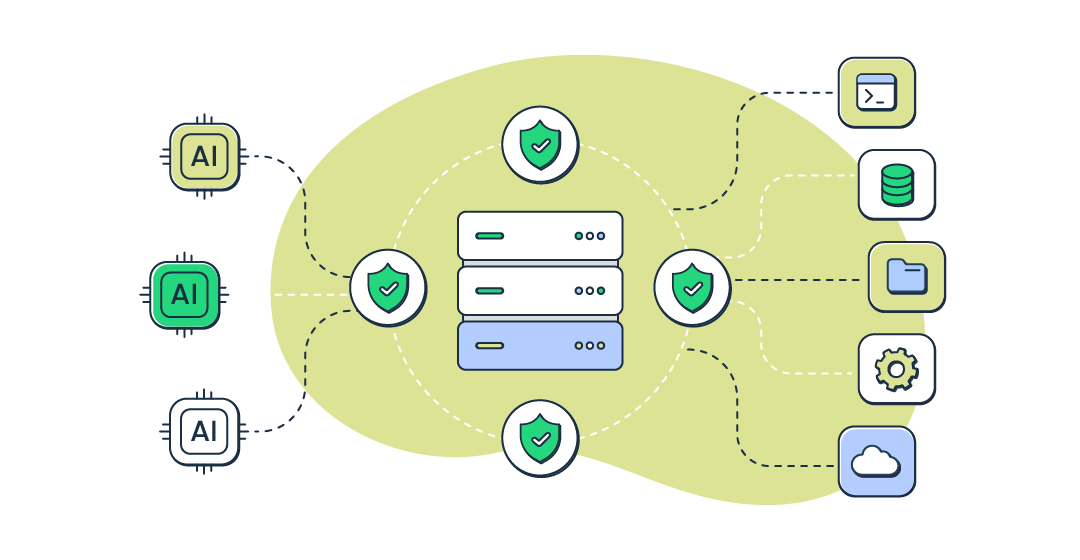
Besides transforming what AI assistants can do, MCP servers have also been at the center of some very real documented incidents since the protocol took off. So, rather than expecting you to become an MCP server security expert overnight, I worked with our engineering and security team at Mailtrap to validate my own vetting process against their experience, industry best practices, and takeaways from real-world exploits. The result is the practical checklist I use before installing any MCP server, and the one I’ll walk you through in this guide.
How to vet an MCP server
It’s easy to assume that a popular GitHub repository or thousands of npm downloads are a good sign. In reality, neither tells you whether an MCP server is trustworthy or one update away from compromising your data. These are the checks I run for each MCP server.
- Is there an official remote MCP server available? Before browsing npm or GitHub, check whether the vendor already offers an official remote MCP server. If they do, start there. Official remote MCPs typically authenticate through OAuth, eliminating the need to trust a community package and, in many cases, avoiding long-lived API tokens stored locally.
- Does the publisher match the vendor? If an MCP server gives your AI access to another company’s product, verify that the GitHub organization or npm publisher actually belongs to that company. A third-party MCP server or community wrapper may be legitimate, but it also means trusting another developer’s code with your credentials.
- What tools and permissions does it expose? Every tool an MCP server exposes is another action your AI can perform on your behalf. Ask one simple question: Does each tool have a legitimate purpose, or is it requesting excessive permissions? A documentation MCP shouldn’t need filesystem access. A weather MCP shouldn’t execute shell commands. A read-only search tool shouldn’t modify data.
- Do the tool descriptions contain hidden or suspicious instructions? Read the tool descriptions before your model does. They should describe capabilities, parameters, and return values – not tell the model to ignore previous instructions or prioritize certain actions. If a description tries to influence the model’s behavior, treat it as a red flag and a potential sign of tool poisoning.
- Has it had any recent CVEs, and is it actively maintained? Security issues are inevitable. What matters is how quickly they’re fixed. Check for recent CVEs, verify they’ve been patched, and make sure the repository is still actively maintained. A project with a history of fixing vulnerabilities quickly is usually a safer bet than one that claims to have never had any.
- Am I comfortable storing my API token the way this server requires? Check how the server authenticates before installing it. If OAuth is available, prefer it. If the server requires a long-lived API token, make sure you’re comfortable with the risks of storing that credential locally and that it follows security best practices.
Tip: If I don’t feel like manually working through the entire checklist each time, I’ll then use mcp-vet, an open-source scanner for local MCP configurations, to automate many of the repetitive checks for me. The scanner flags common issues like unverified publishers, exposed API tokens, and unpinned versions, and gives you an APPROVE, WARN, or BLOCK verdict. Of course, when it comes to anything important, I still verify it myself, but if I need to speed up the vetting process, this works like a charm. Enterprise DAST tools cover what a static scanner like this can’t.
Practices to follow post-installation
Okay, so you’ve used my checklist, installed what seems to be a trustworthy MCP server, and now all that’s left to do is let the AI loose on your GitHub repos, docs, databases, emails, or whatever else you installed the MCP server for. Right? Well… not quite. Installing the server is only half the job. How you configure it, update it, and interact with it matters just as much as the vetting process itself. So below, I’ve compiled a list of MCP security practices I follow to keep the attack surface as small as possible after installation.
- Limit API tokens to the minimum permissions required. Whenever possible, create a dedicated API token for the MCP server instead of reusing one you already have. Then, scope it down as much as the provider allows. If the server only needs read access, don’t grant write permissions. If it only needs access to a single repository, project, or workspace, don’t give it access to your entire account. And don’t leave that token sitting in a config file either. Move it into a dedicated secrets manager, where it’s encrypted, access-controlled, and never touches your codebase directly.
- Pin the server version instead of relying on automatic updates. After installing an MCP server, don’t automatically jump to every new release. Keep it pinned to a known version and only upgrade after reviewing what changed. Treat every update like you treated the initial installation and verify it before trusting.
- Require approval for destructive or high-impact actions. Configure your MCP client to require explicit approval before large language models (LLMs) can delete files, execute shell commands, send emails, modify databases, or perform other irreversible actions. Even if you trust the server, don’t let the model perform high-impact actions automatically.
- Treat all untrusted content as a potential prompt injection attack vector. Once your MCP host gives an LLM access to MCP tools, assume that anything it reads could contain instructions designed to influence its behavior. That includes GitHub issues, documentation, emails, PDFs, pull request descriptions, or any other third-party content. When working with untrusted input, avoid giving the model unrestricted access to sensitive tools until it has finished processing it.
- Watch for capability drift after installation. Before upgrading an MCP server, check whether the new version introduces additional tools, requests broader OAuth scopes, or expands existing capabilities. Review every new tool and permission with the same scrutiny you applied when you first installed the server. If you can’t explain why a new permission is necessary, don’t grant it.
MCP server security incidents that shaped my approach
I’m a big believer in learning from other people’s mistakes, especially when it comes to MCP server security. That’s exactly why I built my checklist around real security incidents, many of which I discovered through the UpGuard blog.
So, to put the checklist into context, let me take you through a few of the incidents and the specific checklist items and best practices they most relate to.
SmartLoader – Trojanized Oura Ring MCP clone (February 2026)
Attackers behind the SmartLoader campaign impersonated Oura’s official MCP integration by creating convincing GitHub accounts, cloning the legitimate repository, and distributing what appeared to be a normal MCP server. Rather than exploiting a vulnerability in the MCP protocol itself, they relied on users trusting what looked like an official project.
Once installed, the project deployed an infostealer capable of stealing browser credentials, SSH keys, cryptocurrency wallets, and other sensitive data. The malicious behavior wasn’t immediately obvious, making the fake repository difficult to distinguish from the legitimate one without verifying its publisher.
Related checklist item / best practice: Does the publisher match the vendor?
CVE-2025-6514 – mcp-remote OAuth RCE (July 2025)
A critical vulnerability in mcp-remote exposed users to remote code execution during the OAuth authentication flow. Tracked as CVE-2025-6514, the flaw allowed malicious MCP servers to abuse improperly validated redirect URLs and execute arbitrary shell commands on a user’s machine.
With more than 437,000 downloads at the time of disclosure, the vulnerability affected software that many developers had already integrated into their workflows. And rather than relying on fake packages or social engineering, the attack exploited a weakness in a trusted dependency.
Related checklist item / best practice:
- Has it had any recent CVEs, and is it actively maintained?
- Pin the server version instead of relying on automatic updates.
GitHub MCP – Private repository theft via prompt injection (May 2025)
A prompt injection attack against GitHub MCP demonstrated how an attacker could steal data from private GitHub repositories without compromising the server itself. By hiding malicious instructions inside a seemingly harmless GitHub issue, the attacker convinced an AI agent to retrieve private repository contents, resulting in data exfiltration.
The attack succeeded because the model interpreted untrusted content as legitimate instructions while it still had access to sensitive repositories. Luckily, the GitHub MCP server itself was never compromised.
Related checklist item / best practice: Treat all untrusted content as a potential prompt injection attack vector.
Supabase + Cursor – “The Lethal Trifecta” (July 2025)
A support ticket containing hidden instructions convinced Cursor to retrieve Supabase database credentials before exposing them in its own response. The proof of concept, known as the “lethal trifecta,” demonstrated how three conditions, access to sensitive data, untrusted user input, and an outbound communication channel, could combine to create a serious security risk.
The key takeaway wasn’t that Cursor or Supabase had been compromised – they hadn’t. Instead, the exercise showed how easily confidential information can leak when those three conditions exist in the same AI session.
Related checklist item / best practice: Treat all untrusted content as a potential prompt injection attack vector.
postmark-mcp – Impersonation backdoor (September 2025)
The fake npm package postmark-mcp impersonated Postmark’s official integration and behaved exactly as users expected for roughly 15 releases. Then, in a later update, it quietly introduced malicious code that BCC’d every email sent through the server to an attacker.
What made this attack particularly dangerous is that users weren’t compromised because they installed an obviously malicious package; they were compromised because they trusted software that had worked perfectly for months.
Related checklist item / best practice:
- Does the publisher match the vendor?
- Is there an official remote MCP server available?
- Pin the server version instead of relying on automatic updates.
Amazon Q (VS Code extension) – Destructive filesystem wipe (2025)
Hidden instructions inside a malicious pull request showed how Amazon Q could be manipulated into deleting local files and tearing down AWS resources. Rather than exploiting a vulnerability in the extension itself, the proof of concept relied on the agent’s ability to interpret untrusted content.
It highlighted the risks of allowing AI agents to perform high-impact operations without requiring human confirmation. Once the malicious instructions were interpreted as part of the task, the agent began executing destructive actions automatically.
Related checklist item / best practice: Require approval for destructive or high-impact actions.
Wrapping up
MCP servers have fundamentally changed what AI assistants are capable of, and I genuinely think they’re one of the most exciting developments in the AI ecosystem. But the more power we give these tools, the more deliberate we have to be about deciding which ones deserve our trust.
And no, I don’t expect every MCP server to be perfect, and I certainly don’t expect myself to catch every possible issue. What I do expect is for all of us to spend a few extra minutes understanding what we’re installing, who built it, what it can access, and how it’s maintained.
That’s exactly what this MCP server security checklist helps me do, and hopefully it’ll help you build the same habit.