



Email isn’t always instant – and sometimes that’s by design.
When a receiving server decides you’re sending too much, too fast, or without enough trust, it slows you down. It doesn’t reject your messages outright. It caps how many it will accept from you in a given window and queues the rest. That cap is called email throttling.
But throttling isn’t just something that happens to you. Smart senders deliberately limit their outbound rate to stay within provider thresholds, protect their reputation, and keep transactional mail flowing when it matters most.
This guide covers both sides:
- Why mailbox providers and ESPs throttle your email.
- How to proactively throttle your own sending to stay ahead of the problem.
We’ll walk through how to identify throttling, what causes it, the business impact of ignoring it, and concrete strategies for prevention.
What is email throttling?
Email throttling has two definitions, depending on which side of the delivery chain you’re on:
- From the mailbox provider/receiving server perspective: Throttling is the slowing or temporary blocking of inbound mail due to volume, sender reputation, or policy triggers. The server accepts some messages and defers the rest, signaling the sender to slow down and retry later.
- From the sender/ESP perspective: Throttling is the intentional limiting of outbound sending speed to stay within acceptable rates, avoid triggering provider defenses, and protect sender reputation.
The key insight: if you don’t throttle yourself, the receiving server will do it for you – on its terms, not yours.
Throttled vs. deferred emails: the critical distinction
These two terms get used interchangeably, but they describe different failure points in the delivery chain:
- A throttled email is rejected by the sending server before a delivery attempt even occurs. Your ESP or MTA refuses to dispatch the message because you’ve exceeded your account’s sending quota or rate limit. The message never leaves your infrastructure.
- A deferred email is rejected by the receiving server after a delivery attempt. The message left your server, reached the recipient’s mail exchange, and was temporarily refused. The sending server queues it for retry.

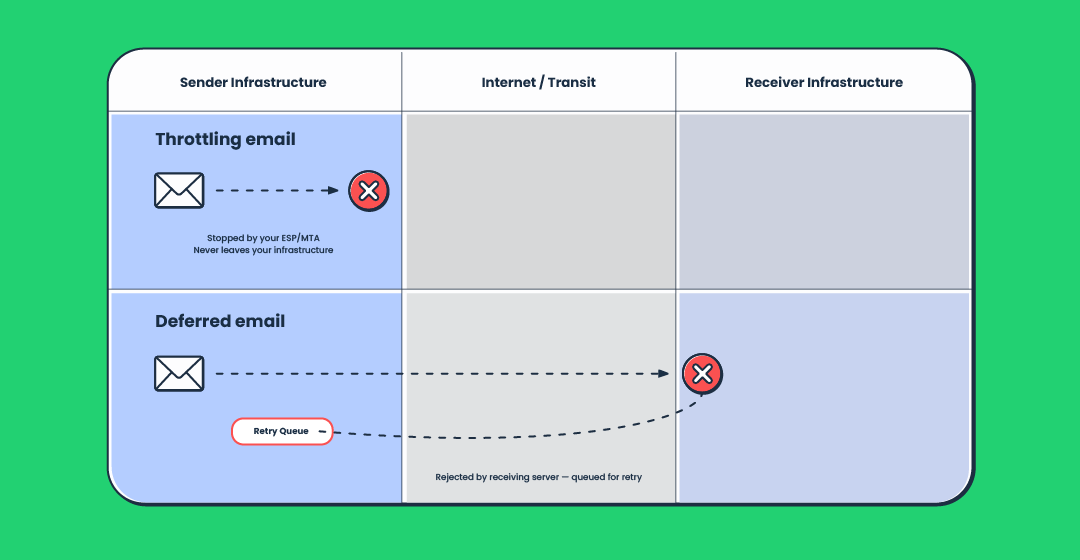
Why does this distinction matter? Because the root causes, and the fixes, are completely different. A throttled email points to your own sending configuration or ESP plan limits. A deferred email points to the receiving server’s trust in your IP, domain, or sending patterns.
Some ESPs don’t separate these terms in their reporting, which can make diagnosis harder. When you see delivery failures, the first question should always be: where in the chain did the rejection happen?
Soft bounce vs. hard bounce in the throttling context
Throttling produces soft bounces – temporary failures that the sending server will retry. This is fundamentally different from a hard bounce, which is a permanent failure (invalid address, non-existent domain).
The retry behavior matters:
- Most ESPs will retry deferred messages over a window of 24 to 72 hours, with increasing intervals between attempts.
- If the receiving server keeps deferring after the retry window expires, the message fails permanently.
- Repeated soft bounces from the same provider are a signal that something systemic needs fixing – not just a transient hiccup.
How to identify email throttling issues
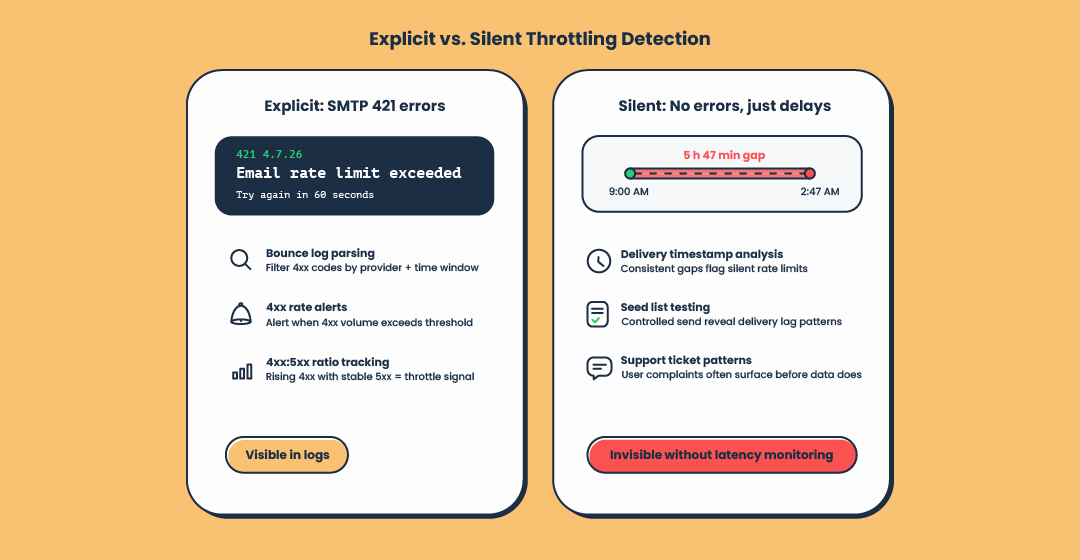
Throttling shows up in two ways: some servers tell you explicitly, others don’t. Both require different detection approaches.
If you don’t exceed the ESP’s sending quota, no email throttling is expected, right? But you are unlikely to be willing to deal with your email campaign for 100K recipients by hand. That’s why the following best practices will be quite useful to increase your performance and avoid throttling.
Scenario 1: SMTP 421 errors (explicit throttling)
When a receiving server throttles you explicitly, the message bounces with an SMTP 4xx response code – most commonly a 421. This means the server temporarily refused the connection or the message because you’ve hit a rate limit.
Common 421 error descriptions you’ll see in bounce logs:
421 4.7.26 Service not available, closing channel; often rate limit or temporary outage |
421 4.7.26 Email rate limit exceeded |
421 4.7.0 Temporary System Problem |
421 Request refused; try again later |
Don’t dismiss these. A handful of 421s during a large campaign might be normal. A sustained spike across multiple sends is an early warning.
How to act on it:
- Parse your bounce logs regularly for 4xx codes – Filter by provider domain to see if the problem is isolated (e.g., only Gmail) or widespread.
- Set up alerts for 4xx rate spikes – a sudden increase in 421s within an hour is a stronger signal than the same count spread across a week.
- Track the ratio of 4xx to 5xx bounces – If your 4xx rate is climbing while 5xx stays flat, you’re being throttled, not blocked.
Scenario 2: Silent delays (implicit throttling)
This one’s trickier. Working with senders at GlockApps, I regularly see delivery times of 5 to 30 minutes and, in some cases, 10 to 12 hours. The catch: the server doesn’t tell you anything. It accepts the message, then holds it.
No bounce. No notification. Just silence.
The message eventually arrives, but hours later – long after an OTP expired, a password reset became useless, or a flash sale ended.
How to detect silent throttling:
- Delivery timestamp analysis: Compare the time your server handed off the message (the SMTP transaction timestamp) with the time it appeared in the recipient’s inbox. A consistent gap of 10+ minutes across multiple messages to the same provider is a throttling signal.
- Seed list testing: Send to a set of test addresses across major providers and measure actual delivery time, not just delivery success. Tools like GlockApps show exactly how long each message takes to arrive.
- Recipient feedback patterns: If your support team starts hearing “I never got the verification code” or “the reset link expired before the email arrived,” that’s often silent throttling at work. This issue is particularly noticeable in systems that rely on email OTP verification, where delayed message delivery can disrupt login and account recovery workflows.
Monitoring and alerting setup
To catch throttling early, track these metrics continuously:
- Delivery rate by provider: What percentage of messages to Gmail, Microsoft, Yahoo are accepted on first attempt?
- Delivery latency by provider: How long between handoff and inbox placement? Track P50, P90, and P99.
- 4xx rate by provider: Spike detection with time-window alerting.
- Retry queue depth: How many messages are sitting in retry? A growing queue means deferrals are outpacing successful retries.
Build these into your existing monitoring stack. If you’re using Mailtrap’s email analytics, you can track delivery stats and per-provider performance from the dashboard. For custom setups, parse MTA logs and pipe metrics into your observability platform.
Why mailbox providers throttle emails
Providers throttle to protect their infrastructure and users. Here’s a quick-reference breakdown of the trigger categories — since we’ve already covered the practical side, this is the “why” behind what you’re seeing.
- Reputation triggers: Low sender reputation (spam complaints, poor list hygiene), new/cold IP with no history, inconsistent sending patterns (silence then a 500K blast), and SPF/DKIM/DMARC authentication failures.
- Volume triggers: Per-IP/domain rate limits exceeded, server load balancing during high-traffic periods, peak season filtering (Black Friday, holidays), and full recipient mailboxes.
- Content and behavior triggers: High spam filter scores, consistently low engagement with high complaint rates, and messages matching known spam campaign patterns.
Provider-specific behaviors
- Gmail: Strict with new senders — starts by accepting a small number of messages and increases limits as engagement signals accumulate. Use Postmaster Tools for reputation visibility.
- Microsoft (Outlook/Hotmail): Throttles on both IP and domain reputation. Outlook.com, Hotmail.com, and Live.com share infrastructure. Use SNDS for IP-level data.
- Yahoo/AOL: Strict per-IP rate limits with relatively transparent 421 error messages. Offers Complaint Feedback Loop enrollment.
- B2B domains: Corporate servers (Exchange, Google Workspace) often have stricter, admin-configurable rate limits.
Why ESPs throttle outbound emails
Your ESP or email sending platform also throttles your outbound mail — and for good reasons.
Most ESPs operate shared IP pools where multiple senders share the same sending IPs. If one sender blasts a dirty list and tanks the IP’s reputation, every other sender on that IP suffers. ESPs monitor patterns across all accounts and automatically throttle suspicious behavior to prevent reputation contamination.
This is why a sudden increase in your sending volume — even if your list is clean — can trigger ESP-side throttling.
Enforcing account limits
Every ESP enforces rate limits tied to your plan level:
- Per-second or per-minute limits: How fast you can send within a short window (burst rate)
- Per-hour or per-day limits: Total volume caps for sustained sending
- Burst vs. sustained rate: Some platforms allow short bursts above the sustained rate but will throttle you back down if you maintain that pace
Exceeding these limits typically results in queuing (your messages wait), 429/454 errors (your API calls are rejected), or both.
How Mailtrap handles email throttling
Mailtrap takes a structured approach to throttling that gives senders control while protecting deliverability across the platform.
Two-stream architecture:
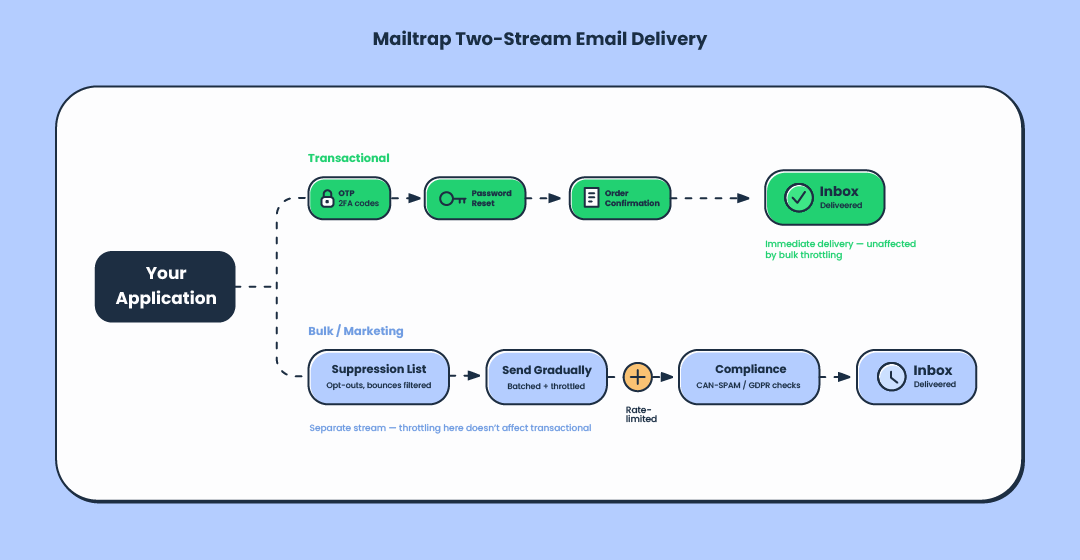
Mailtrap separates email traffic into two distinct streams — Transactional and Bulk. Transactional emails (password resets, order confirmations, OTPs) run on a high-priority stream with immediate delivery. Bulk/marketing emails run on a separate stream with its own suppression list, unsubscribe management, and compliance tooling. This separation means a marketing campaign that gets throttled won’t delay your critical transactional mail.
Built-in campaign throttling:
For email marketing campaigns launched from the UI, Mailtrap offers a “Send gradually” option. Instead of blasting your entire list at once, you set an emails-per-hour rate (up to 150,000/hour), and Mailtrap divides that into 5-minute batches. For example, setting 60 emails/hour delivers 5 emails every 5 minutes — mimicking natural sending patterns that providers trust.
API rate limits:
On the API side, Mailtrap enforces 150 requests per 10 seconds per API token as a baseline. Specific endpoints have their own limits — the Contacts API allows 200 requests per 60 seconds, while the Stats and Suppressions APIs are capped at 10 requests per 60 seconds. Exceeding any limit returns a 429 Too Many Requests response. Mailtrap recommends exponential backoff and even request spacing to stay within limits.
Monitoring and transparency:
Mailtrap provides real-time analytics tracking opens, clicks, and bounces; email logs with 30-day history including spam scores; per-provider performance metrics; webhook events for bounces, spam complaints, and unsubscribes; and campaign progress tracking with a live progress bar and terminate button. The platform also automatically manages bounce suppression, removing hard-bounce addresses and tracking ISP complaint feedback loops.
The business impact of ignoring email throttling
Throttling doesn’t cause permanent delivery failures, but you shouldn’t treat it as harmless either. The consequences compound over time, and I’d like to highlight three that are critical.
User experience degradation
Transactional emails have a shelf life measured in seconds, not hours. A password reset link that arrives 30 minutes late is useless. An OTP that arrives after its expiration window creates a broken authentication flow. An order confirmation that shows up hours after purchase triggers “did my order go through?” support tickets. When these delays become patterns, users lose trust in the product itself.
Campaign performance impact
- Timing drift: A campaign meant to hit inboxes at 9am Tuesday arrives between 9am and 6pm. Open rates tank.
- Stretched delivery windows: A send to a large list gets spread across hours or days, invalidating time-sensitive offers.
- A/B test contamination: If variant A delivers in the first hour and variant B trickles in over six, your test results are measuring delivery timing, not content effectiveness.
Reputation spiral risk
This is the most important reason not to ignore throttling. Throttling is an early warning signal in a well-documented progression:
Throttling → Spam folder placement → Blocks → Blacklisting
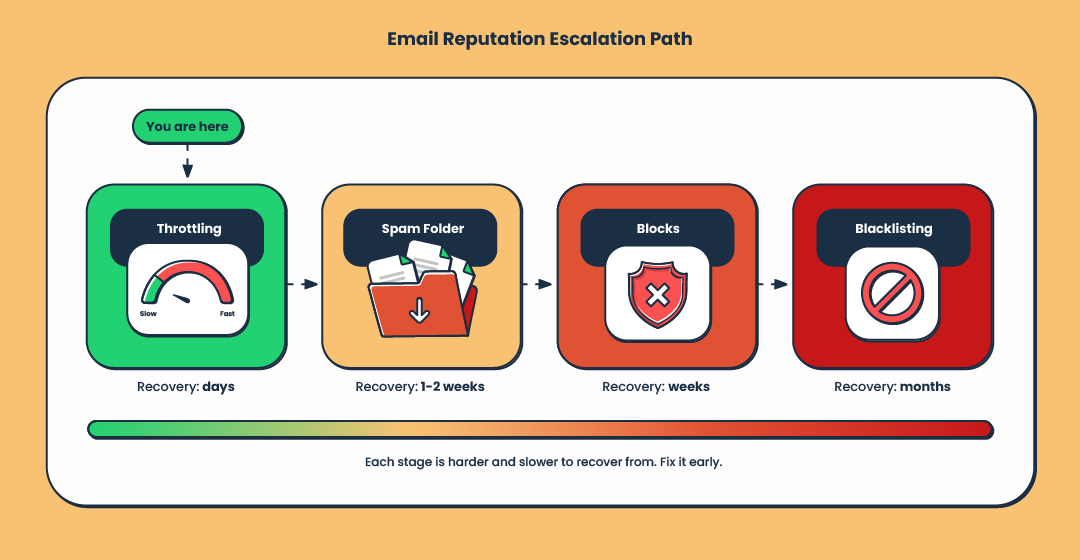
Servers often throttle before they start filtering to spam. If you see throttling and do nothing, the receiving provider escalates. By the time you’re dealing with blacklists, recovery takes weeks or months instead of days.
Proactive self-throttling strategies
The best way to deal with throttling is to prevent it by controlling your own sending rate. Here’s how.
Learn your sending limits
Before you send anything, know the constraints you’re working within:
- Your ESP’s plan limits: Messages per second, per minute, per day. These are hard limits — exceeding them results in queuing or rejection.
- Provider-specific inbound limits: Gmail, Microsoft, and Yahoo each have their own per-IP and per-domain thresholds. Gmail, for instance, is known to limit new IPs to a few hundred messages per day initially.
- Document everything: Create a reference sheet for your team with your ESP limits and known provider thresholds. Update it as you learn from delivery data.
Implement email sending schedules
- Spread campaigns over time windows: Instead of sending 200K emails in a single burst, distribute over 4–8 hours or across multiple days.
- Time-zone-based distribution: Schedule delivery windows aligned to when recipients are active. This improves engagement (which helps reputation) and spreads load naturally.
- Avoid burst patterns: A steady, consistent sending rate looks trustworthy. A massive spike followed by silence looks suspicious.
Use MTA throttling features
If you manage your own MTA (or use one like MailerQ or Postfix), take advantage of built-in throttling controls:
- Delivery thresholds: Configure maximum messages per minute per destination domain.
- SMTP connection limits: Cap simultaneous connections to any single receiving server.
- Throttle schedules: Time-based rules that adjust sending speed automatically — useful for IP warmup and peak-period management.
- Flood patterns: Auto-pause or reduce speed when the receiving server returns 421s, instead of hammering with retries.
- Response patterns: Track bounce responses by class and trigger follow-up actions — suppress addresses, alert the team, or adjust the sending rate.
Segment emails by domain and separate mail streams
Group related domains and manage them as units:
- Microsoft (outlook.com, hotmail.com, msn.com, live.com), Google (gmail.com and Google Workspace), Yahoo (yahoo.com, aol.com). Set separate rate limits for each based on known thresholds and your historical data.
- Use different IPs or domains for different types of email. Transactional mail (password resets, OTPs, receipts) should run on a dedicated IP/domain; these are time-critical and should never be delayed because a marketing campaign is being throttled. Within each stream, prioritize by urgency: an OTP should jump the queue ahead of a weekly newsletter.
Preventing email throttling from receiving servers
Beyond self-throttling, these foundational practices reduce the likelihood of provider-side throttling.
IP and domain warmup
Start with low daily volume (50–100 emails) to your most engaged recipients. Increase by 20–40% every few days, monitoring delivery and bounce rates.
Expect the warmup to take 2–6 weeks for moderate volume, up to 2–3 months for high-volume senders (100K+/day).
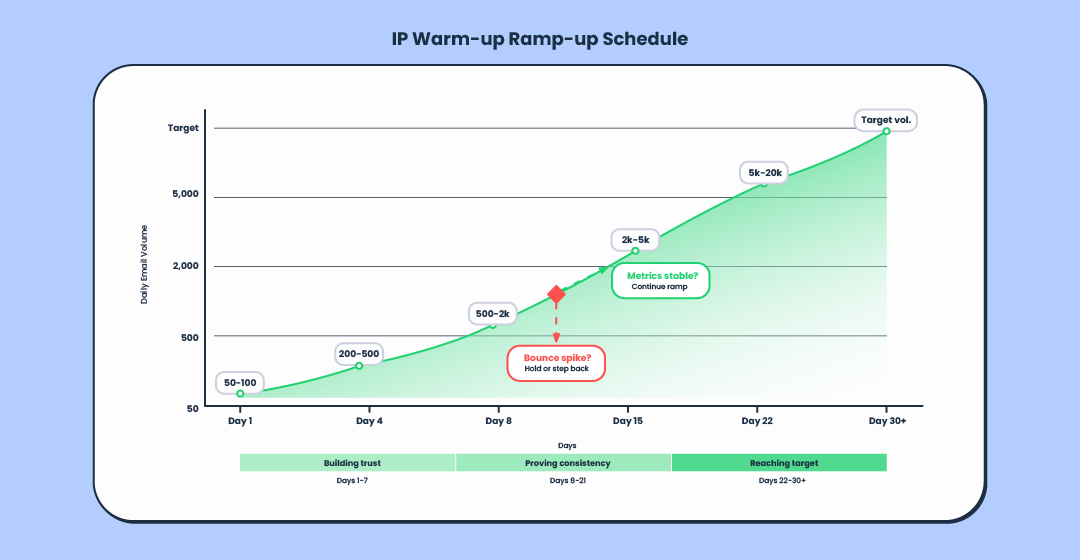
| Day | Daily volume |
|---|---|
| 1–3 | 50–100 |
| 4–7 | 200–500 |
| 8–14 | 1,000–2,500 |
| 15–21 | 5,000–10,000 |
| 22–30 | 15,000–50,000 |
| 30+ | Target volume |
If you see bounce spikes at any stage, hold or step back before continuing.
Authentication, reputation, and list hygiene
Authentication: Get SPF, DKIM, and DMARC right. Watch the 10-DNS-lookup limit for SPF, use 2048-bit DKIM keys, and progress your DMARC policy from p=none → p=quarantine → p=reject. Monitor pass rates – even a 2% failure rate means 2% of your mail is getting flagged.
Reputation: Check blacklists weekly (Spamhaus, Barracuda, SORBS, SpamCop). Enroll in feedback loops from Yahoo, Microsoft, and Comcast. Use Google Postmaster Tools and Microsoft SNDS. Also run an email spam test using GlockApps.
List hygiene: Remove hard bounces immediately. Suppress after 3–5 consecutive soft bounces. Segment by engagement (opened/clicked in 90 days). Sunset unengaged recipients after 6 months. Keep spam complaints below 0.1% – above 0.3%, expect spam folder placement.
Troubleshooting email throttling issues
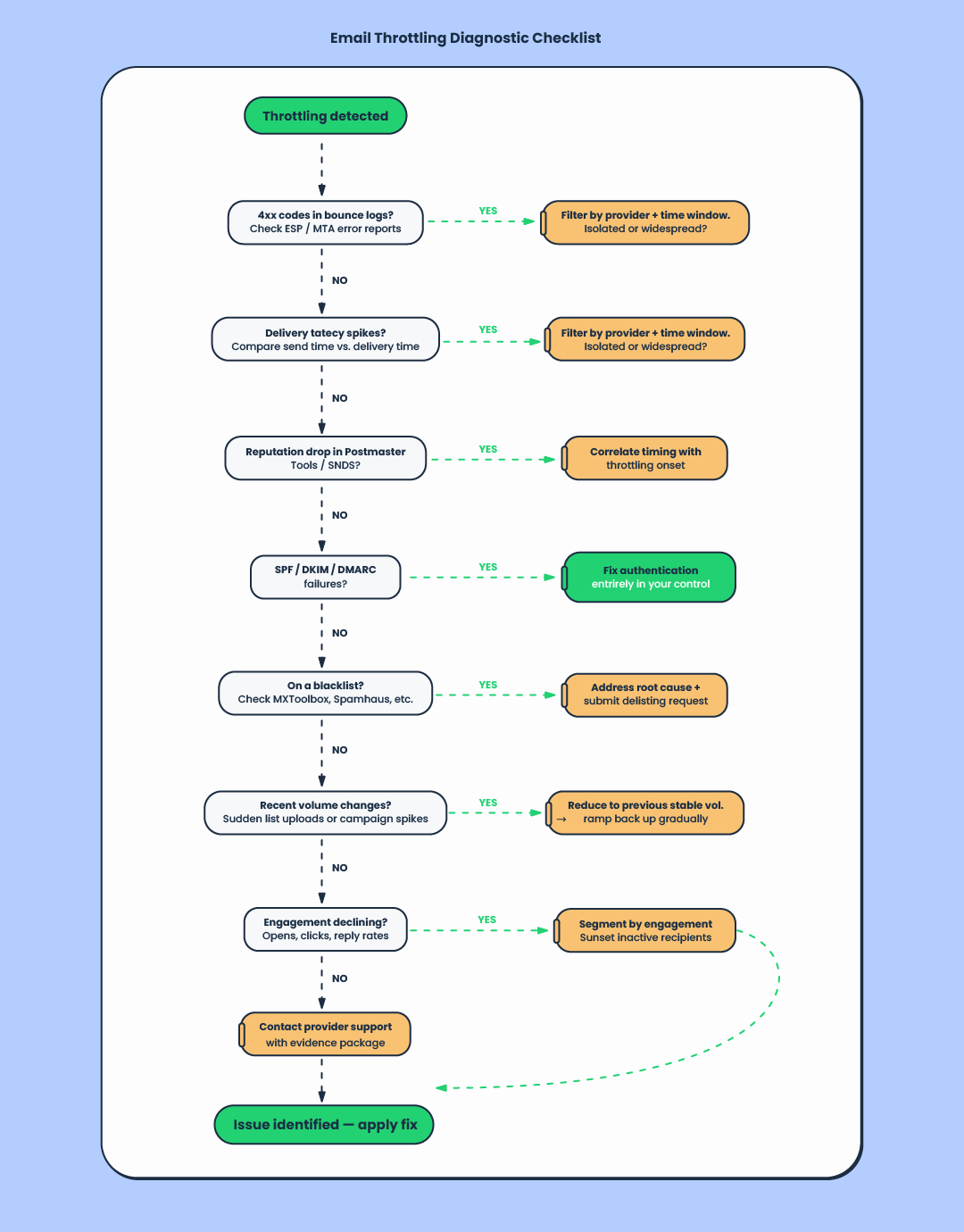
When throttling hits, here’s a systematic approach to diagnosis and resolution, work through these steps in order:
- Check bounce logs for 4xx codes. Filter by provider domain, time window, and error description.
- Analyze delivery timing metrics. Compare send vs. delivery timestamps. Is the delay consistent (rate limit) or variable (server load)?
- Review reputation dashboards. Check Google Postmaster Tools and Microsoft SNDS for recent drops.
- Verify authentication pass rates. Even a small SPF/DKIM/DMARC failure rate can trigger throttling from strict providers.
- Check blacklist status. A new listing could explain sudden throttling.
- Review recent sending volume changes. Any change in sending pattern can trigger throttling.
- Examine engagement metrics trends. Declining opens, rising complaints, and increasing unsubscribes lead to reputation drops.

Provider-specific troubleshooting
Gmail: Check Postmaster Tools → reduce volume by 50% → ramp back gradually → send to engaged recipients first → verify DMARC is passing.
Microsoft/Outlook: Check SNDS → remember Outlook.com/Hotmail.com/Live.com share infrastructure → submit a sender support request if it persists → enroll in JMRP.
Yahoo: Enroll in the Complaint Feedback Loop → read 421 messages carefully (Yahoo’s are specific) → reduce per-IP rate → check reverse DNS.
When to contact provider support
Gather your sending IPs, domains, sample message-IDs, bounce logs with timestamps, and a description of your sending patterns. Frame the request specifically: “We’re seeing 421 rate limit responses for 15% of our sends to your domain since March 15, affecting ~50K messages/day” beats “our emails aren’t being delivered.” Escalation paths: Google, Microsoft, and Yahoo’s sender guidelines.
Key takeaways
- Throttling is bilateral: It happens TO you (from receiving servers and your ESP) and should be done BY you (proactive self-throttling).
- Throttled ≠ deferred: Different failure points, different causes, different fixes.
- Monitor delivery timing, not just success: A message that arrives 6 hours late is technically “delivered” but functionally useless.
- Authentication, warmup, and list hygiene are prerequisites — not optional best practices.
- Throttling is a warning sign: Fix it early, or watch the progression — throttling → spam folder → blocks → blacklisting.
FAQs
What is email throttling?
A temporary limit on how many messages a server will accept from a sender within a time window. It can come from the receiving server or your own ESP. It’s a slowdown, not a rejection.
What’s the difference between a throttled and deferred email?
Throttled = stopped by your sending server before delivery attempt. Deferred = rejected by the receiving server after the attempt. Different causes, different fixes.
How do I know if my emails are being throttled?
Check bounce logs for SMTP 421 codes (“rate limit exceeded,” “try again later”). Also monitor delivery timing — messages arriving 30 min to 12 hours late with no bounce notification signals silent throttling.
Why are my emails being throttled?
Most common causes: new/cold IP, inconsistent sending patterns, declining reputation, authentication failures, or exceeding a provider’s rate limit.
Should I throttle my own email sending?
Yes. Proactive self-throttling prevents the receiving server from doing it on its terms and keeps transactional mail flowing.
What happens if I ignore email throttling?
The typical progression: throttling → spam folder → blocks → blacklisting. Each stage is harder to recover from.
How long do ESPs retry deferred emails?
Typically 24–72 hours with increasing intervals. After the retry window expires, the message fails permanently.
How do I warm up a new IP address?
Start with 50–100 messages/day to engaged recipients, increase 20–40% every few days, monitor bounces at each stage. Takes 2–6 weeks for moderate volume.
What SMTP error codes indicate throttling?
421 (Service not available) from receiving servers and 429 (Too Many Requests) from ESP APIs. Both are retriable soft failures — a signal to slow down.